
How to enforce do not copy text or distribute disclaimers
Enforce please do not copy, duplicate or distribute without permission disclaimers
Learn why do not distribute without permission, do not duplicate and please do not copy text disclaimers need software enforcement. See how you can achieve this by using DRM to prevent proprietary and confidential information from being copied and distributed without permission.
“Do not copy or distribute without permission” watermarks or “do not duplicate” disclaimers are commonplace in various industries, but they are usually implemented poorly. This guide will cover everything you need to know about enforcing such discalimers, including:
- What does do not distribute mean?
- Why use do not copy or distribute disclaimers?
- Why enforce do not distribute disclaimers in watermarks?
- Does document protection software work?
- How to enforce do not copy or distribute watermarks
- Why use Locklizard for do not distribute or copy disclaimers?
 What does do not distribute mean?
 What does do not distribute mean?
Do not distribute in the context of a watermark means that users should not share, copy, sell, give away, or otherwise provide the material to other people. It’s often used for sensitive or copyrighted content, documents intended only for specific recipients, or confidential information. In simpler terms, if something is labeled “do not distribute,” it’s intended only for the user’s personal use or viewing, and they shouldn’t share it with anyone else without explicit permission.
Confidential, internal use only & privileged watermarks
 Confidential, internal use only & privileged watermarks
“Do not distribute” is just one common marking for sensitive documents. It’s often paired with other text, such as “confidential,” “internal use only,” or “privileged.” Each of these tells the reader something specific about their expected behavior, so it’s worth being specific.
| Marking | Who can see it | Can it be shared? |
|---|---|---|
| Confidential | Named recipients | Only with permission |
| Internal use only | Anyone in the organization | Inside, not outside |
| Privileged and confidential | Client and legal advisers | No – may waive privilege |
| Do not distribute | Intended recipient | No |
It’s important to note that whatever label you choose, it’s a suggestion, not a control. Standard watermarks can be removed in seconds by a malicious user, so you’ll need a software solution to enforce them if you want to protect against intentional leaks.
 Confidential watermarks
 Confidential watermarks
A confidential marking means that the document is only for a defined group of people, usually its recipients. It’s among the most common markings, probably because it’s the most general — it marks a document as sensitive without giving specific information on how it should be used. It’s therefore seen on anything from HR records to contracts, client data, and financial reports.
Internal use only watermarks
 Internal use only watermarks
This one is quite self-explanatory. A document marked internal use only can typically be shared freely within an organization but not shared outside of it. It’s usually used for documents that are sensitive but not critically so: internal policies and procedures, pricing sheets, training material, and so on. It’s often seen as a step below privileged or confidential, with its label sometimes resulting in employees uploading documents to third-party cloud services or sharing with contractors.
Privileged and confidential
 Privileged and confidential
The privileged and confidential marking is most commonly used in the legal industry to mark communications that may be protected by attorney–client privilege. You’ll see it on litigation material, lawyer correspondence, and legal advice.
The privileged and confidential label does not in itself create any privilege or legal right. A document is privileged because of what it contains and why it was written, not because of how it’s marked. However, it can make the intentions surrounding it clearer to the recipients and a court.
Why use please do not copy or distribute disclaimers?
 Why use please do not copy or distribute disclaimers?
“Do not copy or distribute without permission” watermarks or do not duplicate disclaimers are commonly used across many industries to discourage copying and unauthorized sharing.
- In the enterprise, ‘do not distribute’ watermarks are commonly added to confidential or sensitive documents, and ‘please do not copy text’ or confidentiality disclaimers are commonly added to emails.
- Training companies commonly use ‘please do not copy text’ or ‘do not duplicate’ watermarks in their course materials to discourage students from copying content and sharing it, or as a warning to third parties not to plagiarize their work.
- The digital publishing industry uses ‘please do not copy text’ or similar do not copy or copyright disclaimers to help protect their works (reports, ebooks, etc.) from piracy and plagiarism.
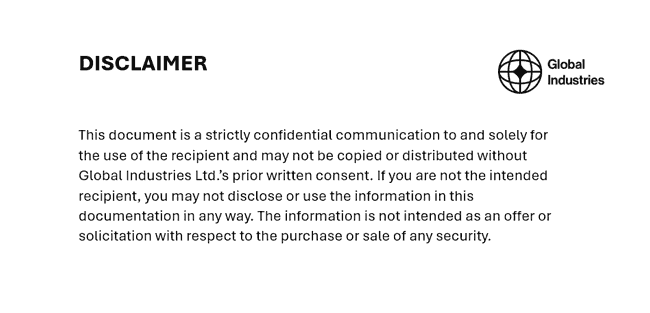
But words alone are worth very little. While these watermarks or disclaimers may help remind friendly users of their obligations, they won’t stop a determined party from leaking or sharing a document. They will also do nothing to stop the copying of text or enforce intellectual property rights. This is especially true if the ‘do not copy or distribute’ text or watermark can be easily removed. It is therefore required to enforce this philosophy via software.
Why enforce do not distribute disclaimers in watermarks?
 Why enforce do not distribute disclaimers in watermarks?
The reason to enforce do not copy or duplicate or do not distribute disclaimers in the enterprise is obvious: you don’t want sensitive or private information leaking to the public or competitors. Whether it’s user data, board meeting minutes, or draft financial reports, internal information could damage your reputation and stock price if released at the wrong time.
Publishers, too, have much to gain from preventing distribution without permission. Though pirates claim that publishers do not experience sales losses due to online distribution, that is simply not true for the ebook market. In the US, publishers are losing upwards of $315 million per year to ebook piracy. And the average ebook pirate isn’t a fiscally unstable student as you might expect, but rather middle-aged individuals in higher socioeconomic brackets. Studies from Nielsen reveal that the attitude is primarily “don’t want to pay” rather than “can’t pay”, which suggests preventing piracy may lead to significant revenue increases.
Similarly, users will not be put off copying text from high-value reports and training course material if they can easily share it online. Again, this can result in significant revenue loss for an organization since people will not pay for something they can access for free.
Is confidentiality training a good way to prevent leaks?
 Is confidentiality training a good way to prevent leaks?
Every organization should be training relevant employees on how to handle confidential documents to safeguard them from leaks. There must be clear guidelines surrounding the types of documents that are considered confidential, how to identify them, where to store them, and who they can be shared with.
Training such as this helps prevent accidental leaks from engaged employees. However, it has its limits. No employee can be 100% focused, 100% of the time. Even with the best intentions, they will eventually slip up. Malicious employees, meanwhile, will try to leak or sell documents no matter what you do. Finally, there are some confidential documents that you’ll have to send outside of your organization – to lawyers, clients, etc. At that point, the internal training you paid for is worth very little.
It’s clear additional measures are needed to prevent the unauthorized distribution of confidential documents.
Does document protection software work?
 Does document protection software work?
Though various products claim to be able to stop unauthorized distribution, they are often just that: claims. The most commonly deployed “solutions” to this problem are ineffective since document restrictions and do not distribute or copy watermarks can be easily removed. Here we cover the most common software or SAAS solutions used to prevent unauthorized sharing and copying of documents.
Secure data rooms/ cloud collaboration services
 Secure data rooms/ cloud collaboration services
Secure data rooms and cloud document services like Google Docs sound like the ideal solution. They require little to no setup and users don’t need to install any software. However, the focus on browser-based controls is ultimately their downfall. Data rooms and collaboration platforms:
- Use JavaScript for security, which is executed in the browser and can therefore be modified and removed
- Use watermarks are often simple to remove – for an example, see Google Docs Watermarks
- Don’t stop screenshots
- Allow users to share their logins with others to grant access to documents
- Require you to upload unprotected documents to a server that is not under your control
Require a constant internet connection. Reliance on a consistent internet connection is poor for readers/workers who travel.
Adobe PDF protection
 Adobe PDF protection
It would be great if you could utilize the same program you use to view and edit your PDFs to protect them. Sadly, that’s a pipe dream. Adobe’s PDF protection has several major flaws:
- Open passwords can be shared, brute-forced, or phished
- Permissions passwords (printing, editing controls) can be removed in seconds with freely available tools
- Watermarks can be instantly removed
- Even protected documents don’t prevent screenshots
Adobe’s enterprise DRM software is called Adobe Experience Manager Document Security and Adobe Document Cloud. It uses certificates rather than passwords so is more secure. However, as we cover in our blog on Adobe Experience Manager Document Security and Document Cloud, it has many security issues which enable users to bypass document restrictions.
Adobe also has DRM software to protect ebooks that does not rely on passwords, called Adobe Digital Editions. However, Adobe DRM is seriously flawed and can be instantly removed using tools such as Epubor and Calibre’s DeDRM.
All considered, Adobe’ security solutions provide weak document protection.
Why removable watermarks fail
 Why removable watermarks fail
Watermarks added in Adobe Acrobat, Word and other Office applications can be removed with the same tools used to create them. Acrobat’s permissions password, which is meant to stop that kind of editing, can itself be stripped in seconds with free online tools.
That makes them fail on two counts. First, a watermark cannot act as a deterrent or reminder if users can remove it at a moment’s notice. Second, because removal takes little to no technical expertise, you may even find non-malicious users removing your watermarks because they make the document harder to read. Either way, the do not distribute message disappears. If the watermark identified the recipient, your ability to trace a leaked copy goes with it.
Gmail confidential mode
 Gmail confidential mode
Most people think that Gmail confidential mode is secure. You would reasonably assume that a feature named “confidential mode” would offer enforceable email confidentiality disclaimers. Unfortunately, that’s not the case:
- It doesn’t stop screenshots of the email communications or their attachments
- Copy and paste restrictions for the email body can be bypassed via the browser’s developer mode
- Print restrictions can also be disabled using the browser developer mode
- Users have easy ways to make editable, printable, and downloadable copies of PDF attachments. This allows them to remove any email disclaimer watermark or share them with somebody who is not the intended recipient
Enterprise rights management systems (ERM)
 Enterprise rights management systems (ERM)
Enterprise Rights Management solutions are a good enough way to enforce do not copy or distribute without permission disclaimers, provided you have the resources to manage them and aren’t planning to share documents outside of your enterprise’s internal network. Those are big ifs, however. The downsides of ERMs are:
- They typically use complex and time-consuming PKI systems and policy management systems
- They usually have a limited ability to apply controls to documents outside of a company’s enterprise network
Azure Rights Management
 Azure Rights Management
Azure Rights Management is Microsoft’s flagship cloud rights management solution, but it’s far from perfect:
- Users can remove the printing, copying, and editing controls from downloaded files with freely available tools
- It’s expensive
- It still requires time-consuming policy configuration and document classification
- It is unwieldy for external sharing
All of this leaves digital rights management (DRM) software as the only reliable method to enforce do not copy and do not distribute watermarks.
How to mark a document as confidential
 How to mark a document as confidential
Marking a document as confidential is as simple as adding overlaying “confidential” text anywhere on the document, preferably on every page in a location that’s hard to crop or edit out. The most common ways to mark a document as confidential are:
- A header or footer label: This is a common method because it’s a quick way to ensure the label repeats on every page. However, by default, header and footer content sits at the top and bottom of the page, making the watermark easy to crop out in a screenshot or print.
- Watermarks: Some document processing software has a watermark function built in with a preset “Confidential” watermark. This allows the creator to repeat it across pages in a more useful location, such as diagonally across the page, with ease.
- A cover page: The first page is often used to inform the reader of the sensitive in large, bold letters, along with expectations regarding its use. This is best used as a secondary label, since users have a tendency to bin the “useless” page to aid readability.
- Metadata or sensitivity labels: Labels in the document’s file properties are used to help information rights management software such as Microsoft Purview identify and apply watermarks and other restrictions automatically.
Again, regardless of the method used, labels are used to inform users of the rules rather than enforce them. By default, they can be removed in seconds with the same tools used to add them. For watermarks to act as a permanent deterrent, you need a way to prevent their removal and enforce the rules they ask the user to uphold.
How to enforce do not copy or distribute watermarks
 How to enforce do not copy or distribute watermarks
Locklizard Safeguard allows you to add ‘do not distribute’ and ‘do not copy or duplicate’ watermarks while using strong encryption and DRM controls to make sure the disclaimer is enforced. It enables you to protect your intellectual property from unauthorized copying and sharing.
Here’s what the process looks like from start to finish:
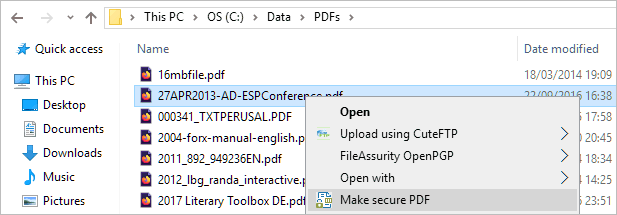
- Right-click on your PDF and press “Make Secure PDF”.
%22%20transform%3D%22translate(1.2%201.2)%20scale(2.41016)%22%20fill%3D%22%23fff%22%20fill-opacity%3D%22.5%22%3E%3Cellipse%20rx%3D%221%22%20ry%3D%221%22%20transform%3D%22matrix(-.5809%2027.73216%20-106.81608%20-2.23748%20197.3%200)%22%2F%3E%3Cellipse%20rx%3D%2246%22%20ry%3D%2230%22%2F%3E%3Cellipse%20rx%3D%221%22%20ry%3D%221%22%20transform%3D%22matrix(84.31433%2010.80091%20-3.55798%2027.77434%20176%200)%22%2F%3E%3C%2Fg%3E%3C%2Fsvg%3E)
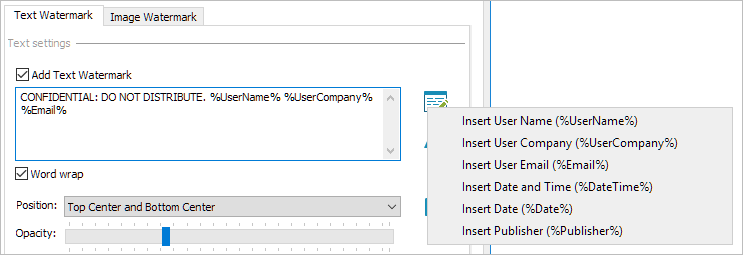
- Once the document opens in Safeguard Writer, open the “View Watermarks” and “Print Watermarks” tab and type your do not distribute disclaimer. You’ll find some example text and variables below.
%22%20transform%3D%22translate(1.5%201.5)%20scale(2.90234)%22%20fill-opacity%3D%22.5%22%3E%3Cellipse%20fill%3D%22%23d2d2d2%22%20cx%3D%22186%22%20cy%3D%2275%22%20rx%3D%2253%22%20ry%3D%2253%22%2F%3E%3Cellipse%20fill%3D%22%23fff%22%20rx%3D%221%22%20ry%3D%221%22%20transform%3D%22matrix(67.88003%207.85399%20-5.26178%2045.47626%2088%2014.2)%22%2F%3E%3Cellipse%20fill%3D%22%23d1d1d1%22%20rx%3D%221%22%20ry%3D%221%22%20transform%3D%22matrix(-4.4371%2032.17735%20-55.1362%20-7.60302%2035.2%2077.4)%22%2F%3E%3C%2Fg%3E%3C%2Fsvg%3E)
- In the “Printing & Viewing” tab, untick “Allow printing” if you want to prevent printed copies from being distributed.

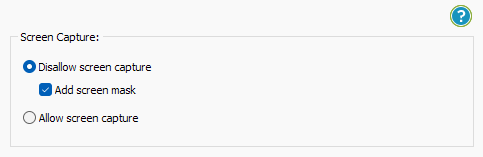
- Safeguard will automatically prevent users from copying text and images, but you may want to take additional steps to protect against screen capture. Without screen capture protection, a user can screengrab your PDF and import it into an optical character recognition tool to make the text editable. To prevent this, open the “Environment Controls” tab and tick “Disallow screen capture” and optionally “Add screen mask” which covers the viewer window with an image if focus is moved away from it.
%22%20transform%3D%22translate(1%201)%20scale(1.88672)%22%20fill-opacity%3D%22.5%22%3E%3Cellipse%20fill%3D%22%23cacaca%22%20rx%3D%221%22%20ry%3D%221%22%20transform%3D%22rotate(76.5%20-20%2045)%20scale(59.50181%2038.8711)%22%2F%3E%3Cellipse%20fill%3D%22%23fff%22%20cx%3D%22161%22%20cy%3D%2259%22%20rx%3D%2295%22%20ry%3D%2295%22%2F%3E%3Cellipse%20fill%3D%22%23fff%22%20cx%3D%22157%22%20cy%3D%2246%22%20rx%3D%2290%22%20ry%3D%2290%22%2F%3E%3C%2Fg%3E%3C%2Fsvg%3E)
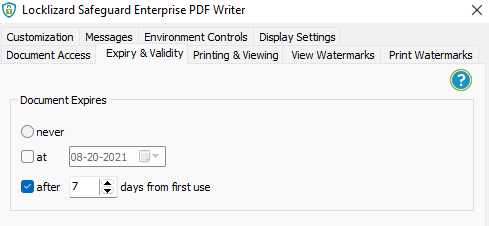
- Optionally, set an expiry date or days or available access in the “Expiry & Validity” tab if you want access to be automatically revoked after a certain time period.
%27%20fill-opacity%3D%27.5%27%3E%3Cellipse%20fill%3D%22%23d1d1d1%22%20fill-opacity%3D%22.5%22%20rx%3D%221%22%20ry%3D%221%22%20transform%3D%22rotate(-23.4%2066.5%20-310)%20scale(477.98897%2094.53851)%22%2F%3E%3Cellipse%20fill%3D%22%23fff%22%20fill-opacity%3D%22.5%22%20rx%3D%221%22%20ry%3D%221%22%20transform%3D%22matrix(8.49524%20-81.77302%20265.18549%2027.54962%20347.5%20158.5)%22%2F%3E%3Cellipse%20fill%3D%22%23d1d1d1%22%20fill-opacity%3D%22.5%22%20rx%3D%221%22%20ry%3D%221%22%20transform%3D%22matrix(-140.83498%20-77.36042%2034.03874%20-61.96768%2059.5%20224.4)%22%2F%3E%3C%2Fg%3E%3C%2Fsvg%3E)
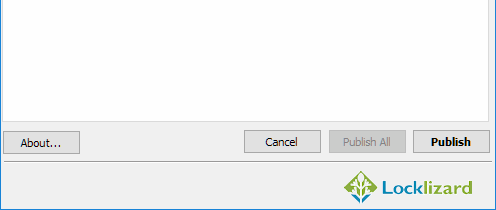
- When you press “Publish”, Safeguard will output your protected PDF to your document’s source folder. You can now distribute this protected file any way you want to (publish on a web site, send by email, etc.) knowing that only users that you authorize can view it.
%27%20fill-opacity%3D%27.5%27%3E%3Cellipse%20fill%3D%22%23d1d1d1%22%20fill-opacity%3D%22.5%22%20rx%3D%221%22%20ry%3D%221%22%20transform%3D%22rotate(168.9%20164.5%20104.6)%20scale(494.0625%2062.51262)%22%2F%3E%3Cellipse%20fill%3D%22%23fff%22%20fill-opacity%3D%22.5%22%20rx%3D%221%22%20ry%3D%221%22%20transform%3D%22matrix(393.1765%20-23.13948%204.63058%2078.68087%20199.7%2040)%22%2F%3E%3Cellipse%20fill%3D%22%23d5d5d5%22%20fill-opacity%3D%22.5%22%20rx%3D%221%22%20ry%3D%221%22%20transform%3D%22matrix(-82.79938%20-45.81606%2023.04825%20-41.6531%2025.1%20159.3)%22%2F%3E%3C%2Fg%3E%3C%2Fsvg%3E)
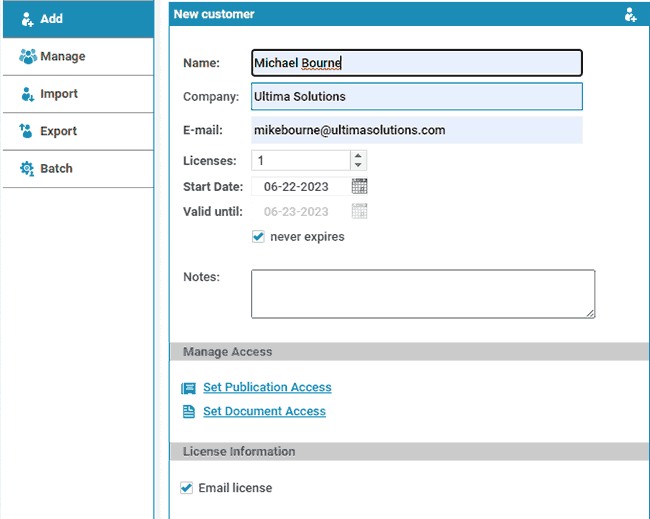
- Add a user account and send them their license via the Safeguard admin portal. See how to add a new user and grant them document access.
%27%20fill-opacity%3D%27.5%27%3E%3Cellipse%20fill%3D%22%235dbfa0%22%20fill-opacity%3D%22.5%22%20rx%3D%221%22%20ry%3D%221%22%20transform%3D%22matrix(510.05773%20-14.95746%201.30653%2044.55327%20256.1%2011.2)%22%2F%3E%3Cellipse%20fill%3D%22%23d3ced0%22%20fill-opacity%3D%22.5%22%20rx%3D%221%22%20ry%3D%221%22%20transform%3D%22matrix(372.3371%20-6.67886%20.9734%2054.2654%20283%2087.7)%22%2F%3E%3Cellipse%20fill%3D%22%23fff%22%20fill-opacity%3D%22.5%22%20rx%3D%221%22%20ry%3D%221%22%20transform%3D%22rotate(-94.9%20341.6%2015.9)%20scale(209.55754%20647.46081)%22%2F%3E%3C%2Fg%3E%3C%2Fsvg%3E)

Do not copy or distribute watermark examples
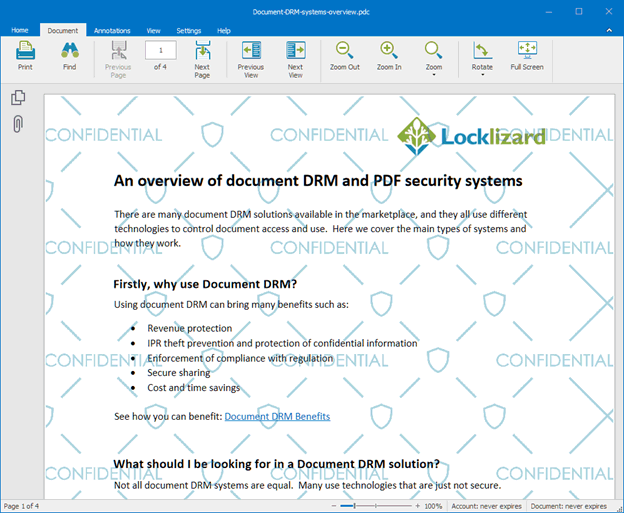
Locklizard supports dynamic watermarking, which allows you to insert information into your watermark at view/print time without having to customize documents for each user. Dynamic watermarks can act as a deterrent as well as a reminder. With them, you can display a person’s name and email address, as well as the date, time, and company. This information is dynamically added when the document is viewed or printed without you having to create individual documents that are personally tailored to display this information.
As a result, anyone who leaks confidential information knows it can be easily traced back to them.
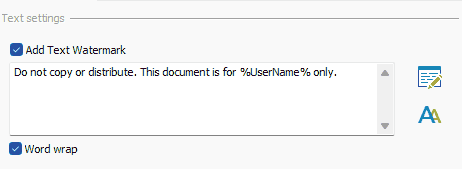
Adding the %UserName% variable to your watermark text will insert the user’s name into the disclaimer when they open/print the document.
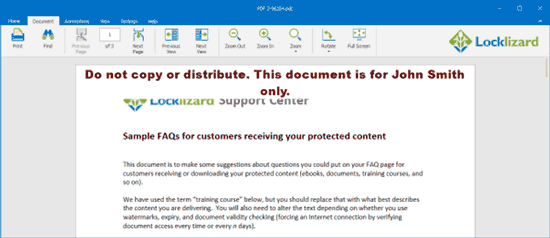
You can, of course, customize the position, font, and formatting of your watermark to your liking.
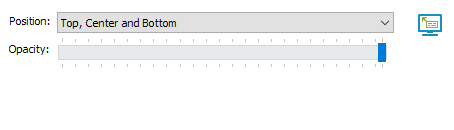
Here are some other do not distribute disclaimer examples:
- “%UserName%. Please do not distribute without permission.”.
- “Do not distribute. This document is for %UserName% from %UserCompany% only”.
- %DateTime% “Proprietary and confidential. Please do not copy or distribute”.
You can also use a watermark image instead of text disclaimers, though naturally, you cannot use dynamic elements for these.
Why use Locklizard for do not distribute or copy disclaimers?
 Why use Locklizard for do not distribute or copy disclaimers?
Locklizard PDF DRM is designed to give you control over how your documents can be used. Its combination of encryption, secure licensing, and document controls stop the unauthorized distribution of PDFs and protect your intellectual property. Your content is locked to authorized devices regardless of where it is stored or what network it is on. You don’t need to worry about distributing documents via secure channels because unauthorized users who intercept the document won’t be able to open it.
Critically, Locklizard is not complex to set up or manage. You apply protection with a straightforward desktop application and manage documents and users via an intuitive web portal. Your unprotected documents never leave your device, and your protected ones can be distributed by any means, as our licensing system ensures only authorized devices can use them.
Our security cannot be easily bypassed or removed unlike the other document protection solutions mentioned. It stops editing, saving, and copy-pasting by default while allowing you to disable or limit screenshots and printing. This leaves users with no route to remove your do not distribute watermark, which Locklizard can enhance with dynamic information such as the user’s name and the current date and time.
Take a 10-day free trial of our PDF DRM software to stop copying and ensure that users do not distribute documents without your permission.
FAQs
 FAQs
FAQs
What constitutes confidential information?
Confidential information can be any information that is shared with a limited number of people with the intention of remaining secret. It can include anything from personal customer and employee information to contracts, proprietary technical information, marketing or business strategies, financial information, salary data, training manuals, and more.
Does encryption adequately protect confidential information?
No. Encryption only protects data in storage or in transit. As soon as the document is in use in its decrypted form, the information can be shared with others and is therefore not safe. A rights management solution is required to provide additional protection to prevent sharing and copying.
How to safely send confidential documents via email?
The only way to safely send confidential documents via email is to encrypt them first. However, encryption alone does not protect them once the document has been received. Unless you encrypt them with a DRM solution to provide additional copy protection, the recipient can pass the unprotected copy to anyone they like.
What does do not distribute mean?
A “Do not distribute” disclaimer means that you should not share the document with anybody else. Content should only be shared with express permission from the publisher or document owner.
Are there any exceptions to the “do not distribute” rule?
This is specific to each organization and document disclaimer. On some documents, you’ll see a message such as “Internal use only. Do not distribute”, in which case one would assume that sharing within the organization is fine. There can often be miscommunications regarding how a document should be used, however, which is why enforcing rules via software is a good idea – it is less prone to human error.
With Locklizard Safeguard, you do not need to worry if a user accidentally shares a file with somebody who is not the intended recipient. Only those who have been authorized will be able to open it regardless.
Is a do not distribute disclaimer and a copyright notice the same?
Not quite. A copyright notice typically contains the name of the copyright holder, the word copyright (or letter c), and the year of publication. It does not necessarily tell users how they should use the work.
A do not distribute disclaimer typically does not include copyright information and is primarily focused on reminding users of their responsibilities surrounding a document.
What is a watermark?
See what is a watermark which includes watermark examples.
Are invisible or social watermarks a good way to enforce do not distribute?
Not particularly. The problem with invisible watermarks is that if you tell users they exist, they can go searching for and remove them, as there is no additional editing prevention. If you don’t tell users they exist, then there’s nothing to dissuade them from sharing. For these reasons, social DRM or social watermarks also offer no protection against accidental sharing.
How do I add a do not copy watermark in Word?
By opening the Design tab in the ribbon and then pressing “Watermark > DO NOT COPY” or “Watermark > DO NOT DUPLICATE”. However, remember that Word watermarks are not secure because they are easy to remove. For more information on this, see – How to Add a Watermark in Word that’s non removable.
Is ‘please do not copy text’ the same as ‘do not copy’?
Please do not copy text was initially added to digital content to discourage users from stealing the work of writers or artists. However, since it was found to be totally ineffective, it is now more commonly used to discourage plagiarism (where the exact text or content is copied and pasted without proper attribution). But just like DMCA protection, it does not prevent copyright infringement.
Should I add a ‘do not copy’ disclaimer for copyright protection?
This is not required since artists automatically gain copyright over all original creative works. For more information, see copyright protection and infringement and fair use of copyright.
Where/how can I dispose of confidential documents?
The best way to dispose of digital confidential documents is to make them inaccessible with a DRM solution like Locklizard instead of destroying them. Tracking down every copy of a document and its backups is a near-impossible task. By ensuring that protection cannot be removed from a document and then removing access, you ensure they can no longer be viewed regardless of where they’re stored.
Is Google Drive safe for confidential information?
Google Drive should not be used for confidential information unless you take additional measures to protect your documents. A PDF that is not encrypted or encrypted with ineffective password protection software like Adobe Acrobat can easily be extracted and have its information stripped. To effectively protect confidential information on Google Drive you must use strong encryption and a solution that stops it from being opened, printed, or screen-grabbed by unauthorized users.

