
Lessons From the Epstein Files and Other PDF Redaction Failures
Why do document redaction failures happen & how can you prevent them?
Redacted PDFs keep leaking sensitive data. See why redactions fail, real case studies, and how to redact securely—or avoid it with document DRM.
Key Takeaways for document redaction errors
- Most redaction failures happen because the black box only covers the text visually. This causes the underlying to remain copyable.
- Even correctly-applied redactions can leak through channels people forget to check such as bookmarks, links, and document metadata.
- Physical redaction isn’t always safe. Scanners often reveal text under black marker ink, and researchers have recovered redacted names purely from the width of the black boxes.
- Cropping and pixelation are not redaction. Cropped data still exists in the file, and pixelation is reversible.
- Redaction isn’t the right choice for everything. Large sensitive sections, tabular/numeric data, and cases where the existence of a redaction could reveal something aren’t a good fit.
- Document DRM (e.g., Locklizard Safeguard) adds a backstop by disabling copy/paste, stripping metadata automatically, and locking access even if a redaction step is missed.
When the first batch of the Epstein files was released in December 2025, it quickly became clear that the Justice Department had made a major mistake. Within hours, social media users had begun posting documents with redactions removed, displaying the names of people of interest.
Accessing the redacted information was frighteningly simple. All users needed to do was copy the text and paste it into a different document. Since the redaction was just a visual overlay and the underlying text remained visible, the non-censored content would appear.
While perhaps the most high-profile example, the Epstein files are far from the only time this has happened. Other prominent examples include Paul Manafort’s legal filing, AstraZeneca’s EU vaccine contract, and the New York Times exposing an NSA agent.
So, why does this keep happening? How is it happening? And more importantly, how can you prevent it? In this blog, we’ll cover:
- What document redaction is
- How digital document redaction works
- How redactions fail in practice
- PDF redaction case studies
- How to avoid PDF redaction errors
- When redaction is not the right approach
- How document DRM can help avoid redaction errors
 What is document redaction?
 What is document redaction?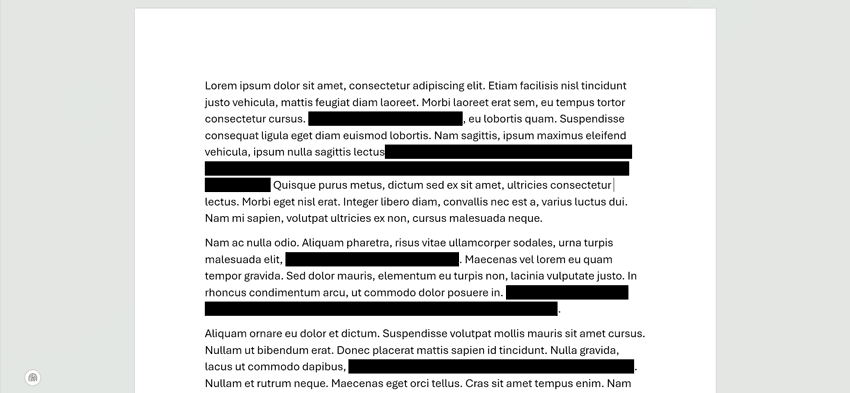
Document redaction is the process of obscuring or removing sensitive information from a document before it’s published. It’s typically used when much of a document is of interest to the recipient, but specific details are on a “need to know” basis and could cause harm to people, programs, businesses, or legal processes.
How digital document redaction works
 How digital document redaction works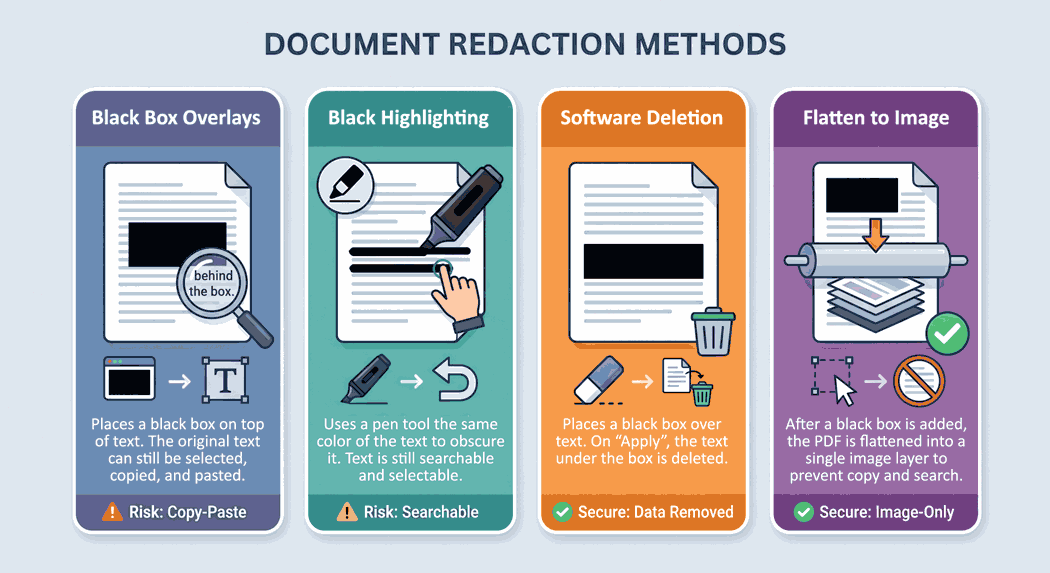
There are four common ways to create digital document redactions, and which is used can have a significant impact on security:
- The software places a black box on top of the text but does not remove the text underneath.
- Digitally highlighting text with a black pen
- The software places a black box and removes the text underneath
- The software adds a black box over the text and then flattens the PDF (turns it into an image).
As we’ll explain shortly, these methods aren’t equal — some provide worse security than others.
How redactions fail in practice
 How redactions fail in practice
While blacking out content without removing the text underneath may seem like a rookie mistake, part of the blame can be placed on PDF viewer applications for the way they handle redactions.
Insufficient “apply” warnings
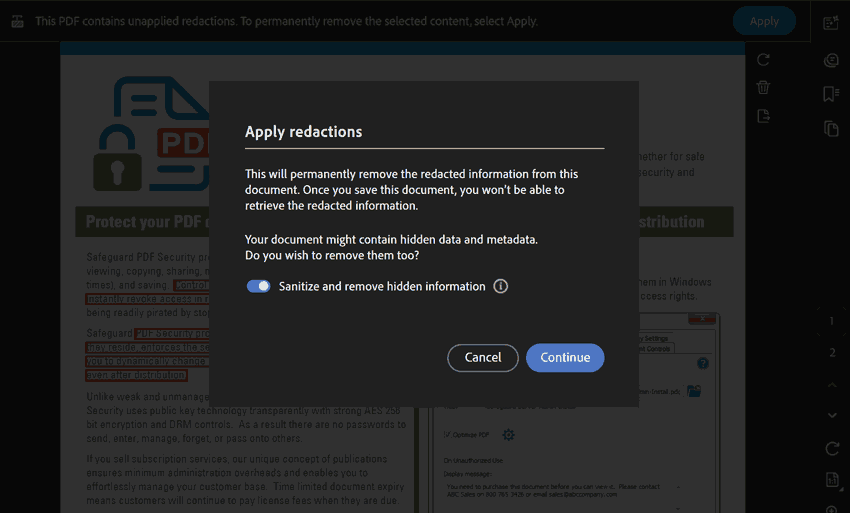
Most PDF viewers require users to press “Apply” after they highlight redactions to remove the content underneath, and then save as a new document. While some viewers have clear warnings about this, others do not. In addition to this, scanned files sometimes retain a hidden OCR layer with the document’s redacted text even after it’s removed.
Inconsistent flattening
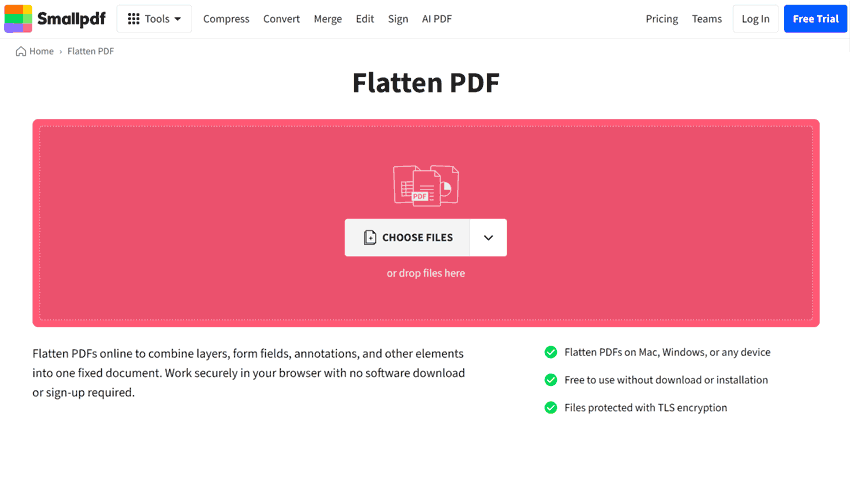
Flattening behavior is also inconsistent between PDF editors. With some, flattening a document with black rectangles on top will merge the boxes with the document layer but leave the original text data.
Conversion errors
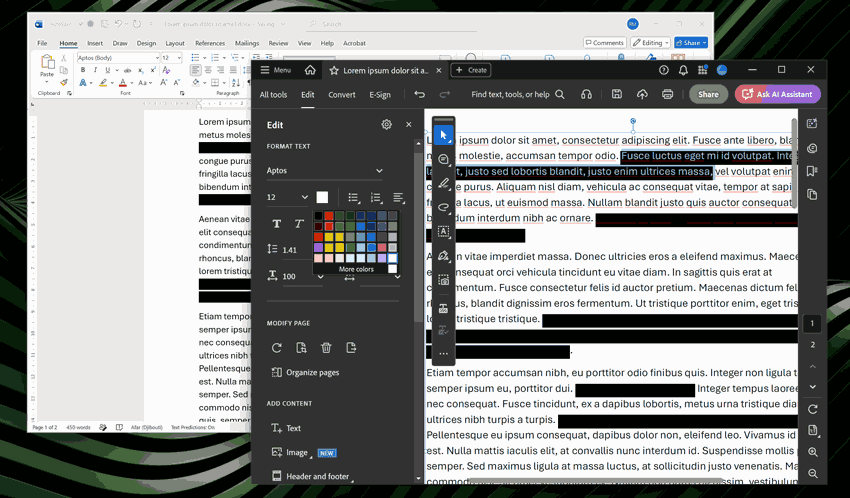
Users sometimes assume that if they convert a Word document that’s been redacted with shape tools to a PDF, the document will be flattened and metadata removed. This is not usually the case. A common mistake is therefore to process a document, export as PDF and immediately share without double-checking whether underlying text is copyable.
Document metadata
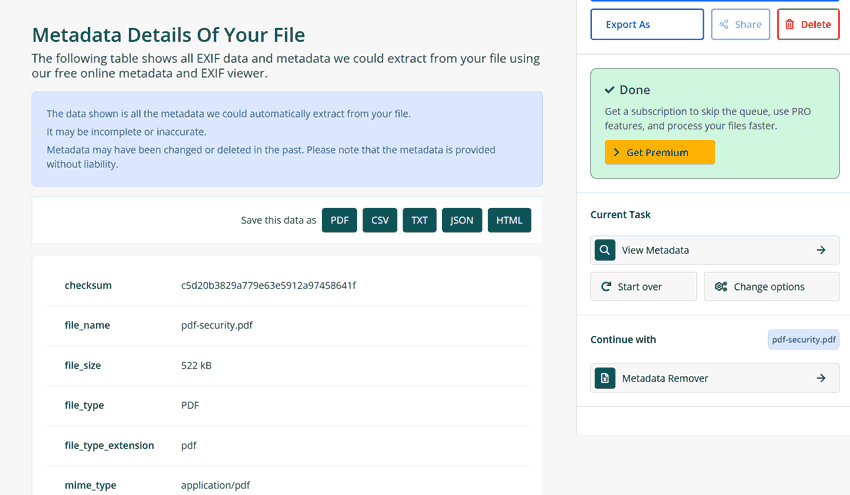
Some PDF editors do not sanitize documents by default to remove potentially sensitive information in comments, attachments, alt tags, URLs, keywords, original document titles, document descriptions, and so on.
Scan errors
A common but misguided piece of advice is that users should redact physically and scan the document since then redactions cannot be bypassed or removed. However, this doesn’t always hold true. While cutting out the sensitive text with scissors works, redacting with a black marker is more dangerous. Scanners often react differently to highlighter ink compared to underlying printed text/physical writing, allowing text to be recovered by a simple brightness slider in image editing tools.
Redaction mark analysis
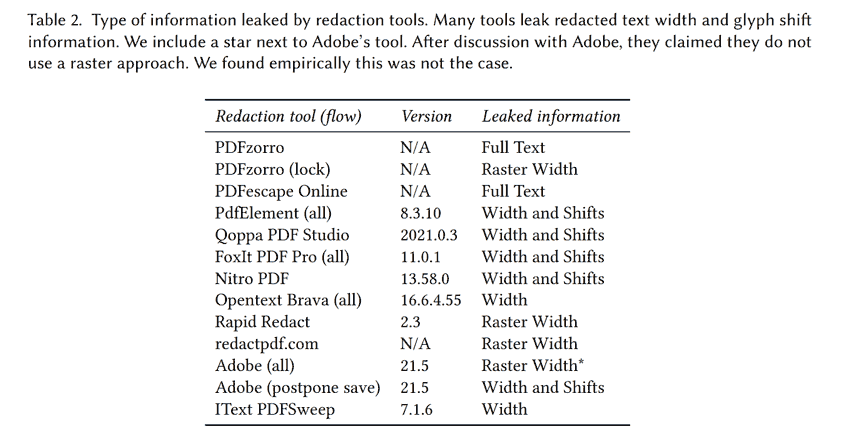
Researchers at the University of Illinois Urbana-Champaign were able to successfully recover names from redacted documents by analyzing the size of the boxes over letters. “l” is going to be taller than “e”, for example. When combined with additional context and metadata, this technique could recover names with a high probability.
Cropping out sensitive text
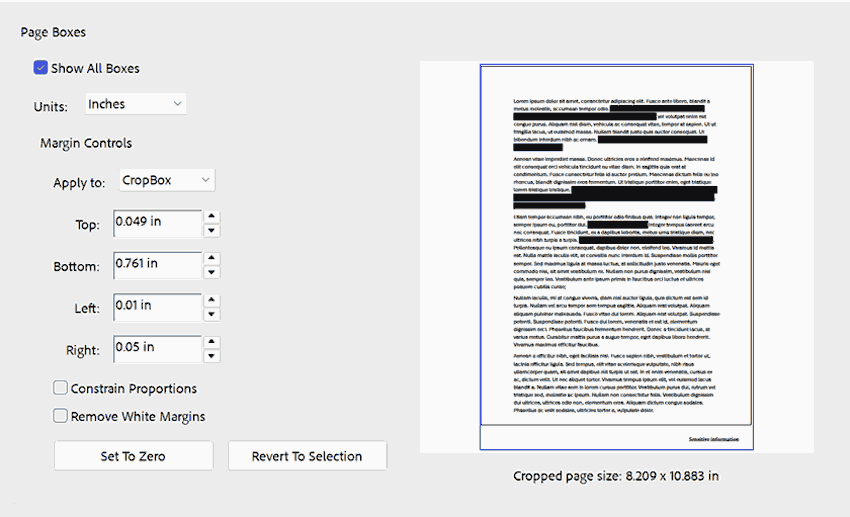
While cropping out sensitive text might seem like a no-brainer, in reality it only hides the text from the viewing area. The cropped-out data still exists in the file and can be found via search, OCR, viewing the document’s code, or expanding the crop again.
Pixellation
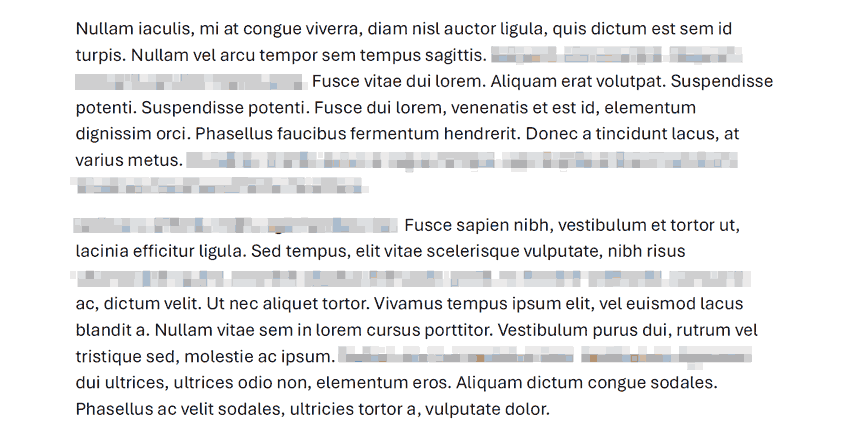
Pixelation should never be used to redact text. It works by shifting pixels a certain amount on the x and y axis. Various tools try dozens of x- and y-combinations until they recover the original text and make it readable again.
PDF redaction case studies
 PDF redaction case studies
Aside from the DOD’s Epstein files, there have been various high-profile redaction failures over the past decades, touching everything from government agencies to large enterprises. It’s worth looking at them to determine how they happened, what the impact was, and how they could have been prevented.
NSA agent exposure in Snowden docs
At this point, almost everyone will be familiar with the 2013 Edward Snowden leaks, which revealed the breadth and depth of the NSA’s surveillance apparatus. One such example centered around the NSA’s ability to determine users’ location, phone contacts, and other data from permissions granted to mobile apps.
In the slide leaked by The New York Times detailing this, both the name of the agent who created the presentation and the description of a targeted network were redacted. The redactions, however, fell into a familiar trap — black boxes with text underneath. Users on Twitter were able to copy and paste the unredacted text from the slide, thereby leaking the identity of an NSA agent and network target.
AstraZeneca Vaccine Contract
In 2021, the EU and AstraZeneca published highly redacted vaccine contracts as part of their public row over supplies. Redacted information included costs, guaranteed delivery dates, intellectual property, and more.
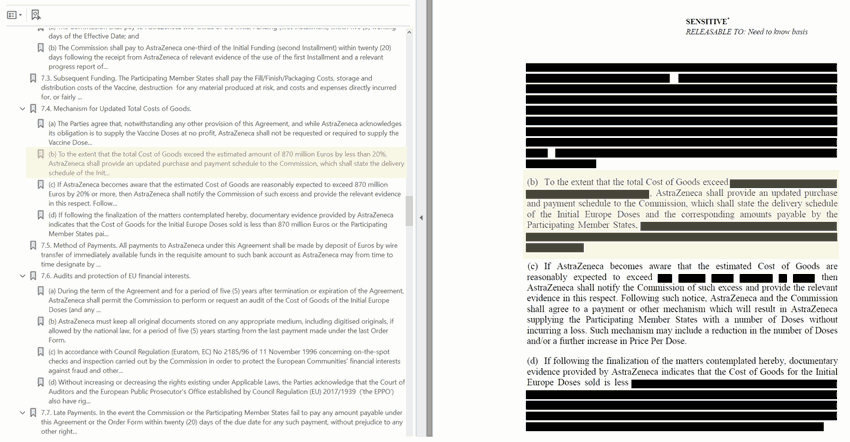
Unfortunately, while the redactions were correctly applied, several elements still leaked through the document’s bookmarks, which quoted the whole text. These included the value of the goods, details of the payment, clauses in the contract, and more.
Sony’s PlayStation secrets
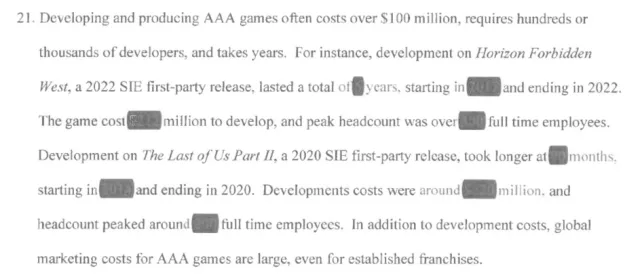
During the FTC v. Microsoft hearing surrounding its acquisition of Activision, Sony provided a document from PlayStation chief Jim Ryan that included redacted details on the margins Sony shared with publishers, how much some of its games cost to develop, and its Call of Duty revenue.
Its documents were redacted in the old-school fashion: black Sharpie over black text. In the courtroom, the text underneath was not distinguishable. Once scanned and released into the public domain, however, the underlying data became visible.
All of these details had the ability to harm relations with partners, hurt Sony’s stock price, and negatively affect future contract negotiations.
How to avoid PDF redaction errors
 How to avoid PDF redaction errors
The primary way to avoid redaction errors, whether you’re an agency or enterprise, is to educate and train users on why they occur and outline a clear checklist for them to follow.
The exact instructions may vary depending on the software and documents involved, but generally:
- Ensure you are using a real redaction tool, rather than a shape tool. Purpose-built redaction tools such as those found in Adobe Acrobat actually remove the text behind the redaction. Check your software to ensure that its redaction tool does the same.
- Sanitize your document after redaction. Most PDF editors have a sanitize option (In Acrobat: All tools > View More > Redact a PDF > Sanitize document > Remove all in Acrobat). Use it after redaction.
- Do an additional check for any comments, hidden layers, or bookmarks. Double-check metadata to ensure the automated tool did not miss anything.
- Check embedded objects. Examine your images, thumbnails, links, and attachments for any sensitive data.
- Flatten the PDF. Make sure you use a tool that turns the PDF into a single image rather than leaving invisible text on a layer beneath.
- Do a copy-paste test. Try selecting all of the text in your document and copy-pasting it into a fresh one. Ensure no content that is supposed to be redacted appears.
- Perform a search and OCR test. Use Ctrl + F and search for redacted terms in your document. Run OCR to ensure nothing redacted is machine-readable.
Following this process every time should make it almost impossible for users to recover redacted information from your document.
When redaction is not the right approach
 When redaction is not the right approach
Redaction is a useful tool, but it’s not the right tool for every situation. It shouldn’t be used, for example, where large swathes of a document are sensitive. In such cases, you should employ additional security or produce a summary that contains only the information you can share.
Redacting numbers in spreadsheets and tabular data is also often a poor fit. Due to spreadsheet sorting, values in other cells, and so on, readers can usually work out the missing number otherwise. You’re better off replacing all of the information with ranges (i.e. $10k-$50k) rather than blacking out a single column. For highly sensitive numeric data, selecting these ranges using randomization techniques such as differential privacy is usually the best bet.
Redaction also shouldn’t be used when the existence of the content itself is sensitive. For example, a field that reads Informant name: REDACTED leaks the fact that there was an informant in the first place, which may be enough to endanger someone.
Finally, you should generally avoid redaction in metadata-heavy formats that save revision history, comments, and so on. It’s usually safer to convert it to a different format such as PDF/A and then redact.
How document DRM can help avoid redaction errors
 How document DRM can help avoid redaction errors
Document DRM is an excellent tool to eliminate or automate many of the steps required to get a redacted document ready for the public. Locklizard Safeguard, for example, allows document publishers to:
- Disable copy and paste so that even if there are incorrectly applied redactions, they can’t be exploited
- Automatically strip annotations, attachments, metadata, JavaScript, blank pages, unused objects, and duplicate streams when the document is encrypted.
- Properly flatten the PDF on publish, including removing any searchable text
- Disable the creation of comments and annotations
Beyond that, however, document DRM is an excellent way of controlling who can access a document and under which conditions. Anybody who works with redacted documents regularly will know that redacted does not necessarily mean public knowledge. A single internal document can contain information with various levels of classification that could still harm the organization if leaked.
A PDF DRM solution like Safeguard contains various controls to prevent sharing, editing, and misuse, including the ability to lock documents to specific devices and locations, prevent screenshots, stop editing, stop saving, and stop or limit printing.
With access enforced through transparent licensing and a secure viewer application, there are no login credentials to share or leak. The license to access documents is locked to the user’s device the first time they open it, leaving no route to access the file beyond compromising the physical device. When combined with redaction and dynamic watermarking, Locklizard Safeguard PDF security represents a comprehensive end-to-end solution for reducing redaction risk and controlling sensitive information.
To try it for yourself, take a 10-day free trial of Locklizard Safeguard or book a demo for a walkthrough of how our PDF DRM product works and how it can suit your use case.
Frequently Asked Questions
 Frequently Asked Questions
Can redacted information be recovered from a PDF?
If the redaction only covers the redaction visibly, rather than removing the text underneath, then yes. Research also suggests redactions can be recovered purely by comparing the width of the redacted words and context clues.
Is Adobe Acrobat’s redaction tool secure?
Relatively. It’s a purpose-built redaction tool that removes the text underneath. However, the document still needs to be sanitized to remove metadata, bookmarks, and more.
Is sanitizing a PDF the same as redacting it?
No. Redaction removes content from the visible document, while sanitizing strips hidden data like metadata, comments, attachments, and JavaScript.
Does redacting a PDF remove its metadata?
Not automatically. It usually occurs in a different step. Some PDF editors prompt you to do it, others don’t.

