
Public Key vs Private Key Encryption vs Passwords for Document Protection
How does public and private key encryption compare to passwords for document security?
Password vs public key vs private key encryption: how each works, where they fail, and why document DRM is needed to stop leaks after opening.
When it comes to securing sensitive documents, terms like “password protection” and “encryption” are often used interchangeably. To some extent, this is valid—documents locked with an open password are usually encrypted under the hood, and some types of encryption rely on a single, really long key that acts similarly to a randomized password.
Treating them as the same thing, however, is a gross and dangerous simplification. In the real world, the precise implementation of the encryption is more important than whether it exists. We’ll break down the differences between passwords, public key, and private key encryption, covering:
- What is password protection for documents?
- What is private key encryption?
- What is public key encryption?
- Private key vs public key vs password encryption
- Why none of them are good enough for sensitive documents
- Which type of encryption should you use?
- What alternatives are there for document security?
- Why Locklizard Safeguard
 What is password protection for documents?
 What is password protection for documents?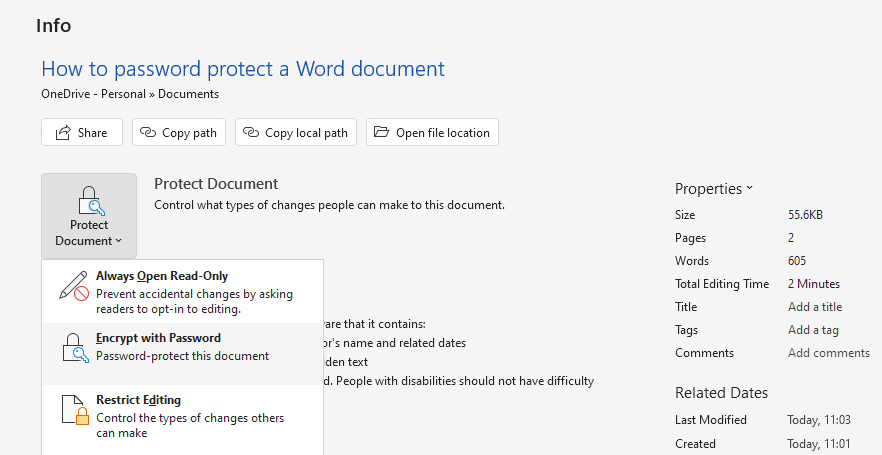
The idea of document password protection is to either restrict opening to authorized users and/or ensure that even authorized users cannot edit or otherwise modify the piece. These two types of controls use different passwords with different implementations.
 The open password
 The open password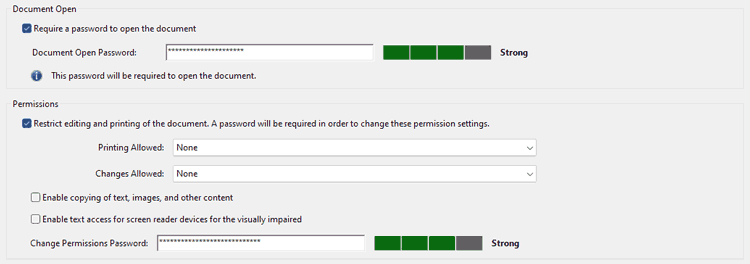
When an owner sets an open password, the contents of the documents are scrambled using an encryption key, with said password required to decrypt it into a readable form.
Rather than using the password directly as the encryption key, however, it’s fed through a process called a key derivation function, which runs the password through a one-way mathematical calculation (called a hash) thousands of times to form the key. When the user enters the password, this process runs in reverse, deriving the key from the password and ultimately decrypting the document.
The point of key derivation is to slow the process down enough that attackers can’t attempt millions of passwords per second in their attempts to guess it. However, using advanced methods, attackers can still try thousands, making document password security only truly secure if the owner chooses a long, random password. This is rarely the reality, with most users opting for memorability over security.
The other major limitation of document password security is sharing. Since each copy of the document typically has the same password, it only takes one user to intentionally or unintentionally leak their password for the security to fall apart. This is made even worse if the password is reused for multiple documents, which is often the case.
The edit password
 The edit password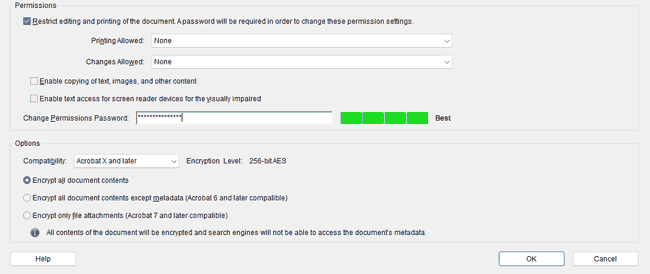
Edit passwords restrict core functions of the word processing application such as printing, editing, and copying to help prevent undesired changes and make document contents more challenging to share.
While you might expect edit passwords to have a similar implementation to open ones, this is far from the case. Edit passwords typically just set a flag inside the file that says “disable the editing and copying functionality”. The document viewer reads that flag and obliges, but it doesn’t have strong security to prevent tampering. Most word processors don’t encrypt document contents, which makes removing the security as simple as opening the document in a code editor and removing the flags. The few that do scramble contents typically do so with a key that’s stored inside the file itself and can be easily recovered to decrypt the content.
Aside from the above, because most document formats can be opened by a variety of viewer applications, security relies on everyone agreeing to respect those flags. In practice, this just doesn’t happen. Some developers either can’t be bothered to implement the controls or want to keep their word processor as lightweight as possible. Further, even when working, these controls rarely stop copy/paste and never prevent screenshots. This allows users to easily share content or create editable copies regardless.
What is private key encryption?
 What is private key encryption?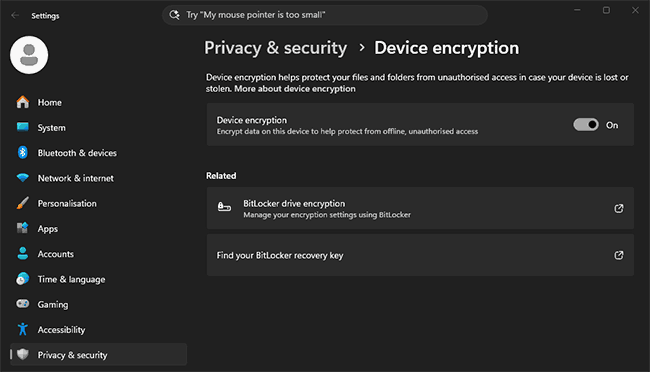
Private key encryption (symmetric encryption) scrambles documents using a single, very long key. When the document reaches the recipient, they decrypt it using their version of that same key, making it viewable and editable again.
This method is more secure than passwords, which have a human element to contend with. It’s also fast and efficient, which makes it ideal for protecting large amounts of data or data that requires low latency.
However, symmetric encryption has three fatal flaws from a document security perspective:
- Distribution: You need a way of getting the key to the document recipients without anybody intercepting it, somebody leaking the key, or a recipient’s device being compromised. If an attacker gets hold of the key or it becomes public knowledge, the encryption is broken.
- Non-persistent encryption: Once a user decrypts the document, they get full access to the unprotected file to do with as they wish. They can share it with people who don’t have the key, upload it to cloud services which then get hacked, and so on.
- Lack of content controls: Private key encryption protects a document up until the point it’s decrypted and opened. It’s not designed to control what users do with documents, and does not prevent saving, copying, editing, sharing, and so on.
So, a private key is better than an open password. But it provides even less protection than an edit password, which at least makes a half-hearted attempt to enforce content controls.
What is public key encryption?
 What is public key encryption?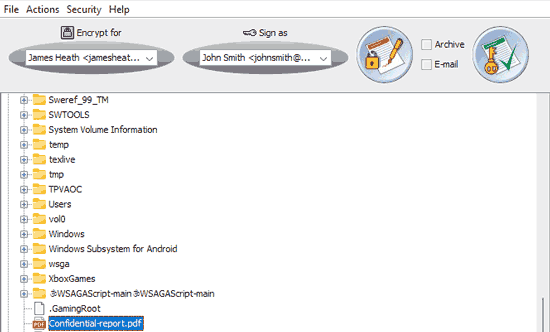
Public key encryption, known as asymmetric encryption, uses private and public key pairs to encrypt documents. The sender encrypts a document using the recipient’s public key, but only their linked private key can unlock it. Thus, the distribution problem is mostly solved — while device compromise is still a concern, you don’t need to worry about a recipient intercepting a public key. All they’d be able to do is send the recipient encrypted files.
Public key encryption also enables digital signatures. You can sign the file with your private key and the recipient can verify it with your linked public key to ensure it’s you. This helps to cut down on attacks such as spear phishing.
You may have noticed, however, that while public key encryption solves the distribution problem we mentioned earlier, it doesn’t solve the other two issues. Public key encryption alone still doesn’t protect documents from being edited, saved, copied, or shared by legitimate users
Private key vs public key vs password encryption
 Private key vs public key vs password encryption
| Password protection | Private key (symmetric) | Public key (asymmetric) | |
|---|---|---|---|
| How it works | A password is run through a key derivation function to produce the encryption key | One shared key both encrypts and decrypts the document | The recipient’s public key encrypts; only their private key decrypts |
| Security depends on | The user choosing a long, random password — rarely the case | Key length, and the single key never leaking | Key length, and the private key staying on the recipient’s device |
| Guessing / brute force risk | High — weak and reused passwords are common | Negligible | Negligible |
| Getting the key to recipients | Must be shared out of band; one leak breaks every copy | Must reach recipients without interception; key sprawl at scale | Largely solved — public keys can be shared openly, though management adds overhead |
| Verifies sender identity | No | No | Yes — via digital signatures |
| Protects in transit and at rest | Partially — only as strong as the password | Yes | Yes |
| Controls use after opening Editing, saving, copy & paste, printing, screenshots | Edit passwords attempt to, but are trivially bypassed | No | No |
| Ongoing control Revoke, expire, device lock | No | No | No |
| Audit trail of views and prints | No | No | No |
| Best suited to | Casual, low-stakes files where “better than nothing” is enough | Bulk encryption of files that stay on your own systems | Protecting files in transit and at rest between known parties |
Why none of them are good enough for sensitive documents
 Why none of them are good enough for sensitive documents
As you can see from the table above, none of these solutions convincingly address what happens after a recipient opens the document. That might be fine if you’re a regular consumer trying to keep your kids out of christmaslist.txt, but it’s a major problem for organizations that share sensitive data.
After decryption, nothing stops an authorized user from sending trade secrets to a competitor, saving it to a cloud account that gets hacked, printing it and losing it on the bus, or editing it in a way that damages your reputation. Worst of all, you can’t revoke access to the document once it’s out there, track where it went, or most of the time even prove who leaked it.
This obviously poses a threat to revenue, but it also becomes a compliance problem. Regulations like GDPR and HIPAA, as well as standards like ISO 27001 expect you to demonstrate ongoing confidentiality, with some requiring a clear audit trail and the ability to revoke access when it’s no longer necessary.
To summarize, for regulated industries, “we encrypted in transit/at rest” is no longer a good enough defense. Reasonable effort should be expended to prevent leaks of all kinds, including those that occur after the recipient opens the document.
Which type of encryption should you use?
 Which type of encryption should you use?
“It depends” is a cheap answer, but it’s true. When it comes to encryption, it’s less about what’s best and more about what your needs are.
Password encryption
Is only really really suitable if you’re trying to prevent family or friends from accessing your files. Its numerous flaws make it a poor fit in a serious environment, but a good choice if you just want “better than unencrypted”.
Private key encryption
Is useful if you want to mass-protect files that will stay on your hard drive, or need to protect content from snooping as it travels across the internet. It’s not recommended as the sole protection mechanism for sensitive information since a leaked key poses a major threat.
Public key encryption
Is a great tool for regular users and businesses to protect files in transit or at rest. However, key management can make using it at scale a hassle. Keys must be exchanged between sender and recipient in advance, which can slow down time-sensitive processes.
What alternatives are there for document security?
 What alternatives are there for document security?
Protection of documents in use is far from a new problem, but new challenges have certainly developed. Historically, organizations had more control over the environment; employees were fully on-site, with company-owned devices, on controlled networks. The modern enterprise does not work this way. Organizations must account for BYOD, remote workers, and collaboration with partners, contractors, and clients across untrusted networks.
As a result, solutions like traditional firewalls, access control lists, traditional rights management, and data loss prevention software are no longer effective alone. Businesses need a solution that works:
- Across a variety of networks, including home and public
- With a variety of devices with varying levels of admin control
- Regardless of where the document is stored
- Can revoke access whether the user has an internet connection or not
Secure data rooms: Perfect solution or hoax?
 Secure data rooms: Perfect solution or hoax?
As you’ll know, enterprises have primarily looked to the cloud to achieve these goals. If you host all your documents in the cloud, you don’t need to worry about the device, network, or internet connection, and you have some control over the environment. The browser can disable features such as editing, copy/paste, and printing, with full RBAC controls even possible in some apps.
Unfortunately, while it all sounds good on paper, secure data rooms and other cloud document services do not prevent leaks in practice. While the browser is great for many things, its limited control over a user’s system means it’s not a great choice for persistent document controls. Since giving random websites control over things like users’ clipboards and print drivers would be a nightmare, developers must use JavaScript to enforce printing and copying controls. The problem with JavaScript, however, is that it executes partly on the client side (the user’s device). This allows users to interfere with the code using their browser’s developer mode or use other bypasses.
Malicious users can:
- Disable copy/paste controls by modifying the code, clicking and dragging highlighted text to another window, disabling
dom.event.clipboardevents.enabledin Firefox’sabout:config, or screenshotting the text and running it through OCR tools. - Screenshot any content, since outside of solutions such as Widevine with a hardware/OS component, the browser cannot prevent screenshots. While some data room solutions use screen overlays to show only part of the content, these are usually easy to bypass using developer tools or by simply taking a screenshot of the non-hidden content and stitching it together.
- Print or print to PDF. Most data rooms and cloud document services look to prevent printing by disabling the print button in the app. However, users can often enable it again using developer mode or by using the browser’s own print function (using Ctrl +P). Of course, there are also situations where you want to allow users to print physical copies but not print to PDF — browser-based tools aren’t able to deliver this kind of granularity.
- Extract images and videos via the network tab in developer mode. There are some ways to make this harder, such as splitting a single image into multiple files, but they can usually be bypassed using TamperMonkey scripts.
- Save the page or access the local cache. Users can use the browser’s “Save Page As” to download the entire webpage content, or dig into their browser’s local cache to retrieve the files offline.
Ultimately, secure data rooms or secure deal rooms are marketing what they want their product to be rather than its reality. Any virtual data room promising “total control” is selling a fantasy.
Where document DRM fits in
 Where document DRM fits in
A document DRM solution such as Locklizard Safeguard does use public key technology, but in a very different way. The protection is attached to the document permanently; through every copy, device, and share, whether the user is authorized to view it or not.
The strongest document DRM implementations pair public key encryption, a secure viewer application, and a licensing system. The admin encrypts the document for selected single-use licenses, which are locked to recipient devices once they install them. As a result, the decryption key is never exposed to the user. Instead, the admin system reads the viewer license and securely transmits the key to decrypt the document content only in memory. There’s no unencrypted file for the user to share, and no temporary or cached files to recover the contents from. The key, meanwhile, is shared in an encrypted folder that’s inaccessible to the user or anybody they share it with.
This, however, is just one part of the equation. A good document protection solution must also control how users can interact with the file once it’s open, else they can edit and redistribute it or share it with others via copy-paste, printing, screenshots, and so on. Thankfully, using a secure desktop viewer application, this is very possible to achieve. Since the application has deeper control over a user’s system and only decrypts content in memory, it can reliably prevent screenshots, stop or limit printing, prevent copy-paste, and stop editing.
Why Locklizard Safeguard
 Why Locklizard Safeguard
Locklizard Safeguard combines AES 256-bit encryption, transparent licensing, and a secure viewer application to protect documents across their entire lifecycle, including after they are opened. Controls embedded in the document file and enforced by the secure viewer allow publishers to:
- Prevent screenshots, editing, saving, and copy-paste: Locklizard shuts down all reliable routes for recipients to share the document’s content, blocking screenshots from first- and third-party applications while ensuring text cannot be saved to the clipboard, and documents cannot be edited or saved.
- Stop or limit printing: Since printed copies are a necessity for some use cases, Locklizard provides publishers with customizable print controls. You can disable printing entirely, allow users to print a specific number of copies, or enable printing only in black and white or grayscale.
- Add dynamic, identifying watermarks: Documents can be stamped with the user’s name, email, and timestamp so that any analog photograph of the screen will be traced back to them. You can also apply image or moiré watermarks to prevent scanning.
- Revoke access at any time, from anywhere: Remove access on a per-document or per-user basis with a few clicks in the Safeguard Admin portal. The next time the user tries to open the document, the license check will fail, causing all copies of the document to fail to decrypt regardless of whether they’re on-site, BYOD, or remote. Since the viewer leaves no way for the user to make additional copies (aside from allowed prints), there’s no time-consuming retrieval process.
- Expire access in the future: Set “self-destruct” timers for a document or limit the time a user can access a document based on a specific date, number of days since first open, or number of views.
- Log views and prints: With Locklizard, you can optionally log who viewed or printed a document, when, and where from. You get a clear audit trail to satisfy regulatory compliance.
- Location and device locking: Lock document access to specific devices or IP address ranges. Make documents accessible only on your corporate network, audited user devices, and so on.
The breadth and persistence of controls is what separates DRM from the other options in this article. A password stops working the moment somebody shares it, a private key the moment it leaks, and public key encryption the moment someone opens the file. Safeguard provides strong, customizable controls embedded in the document itself, preventing sensitive leaks from both internal and external parties. Crucially, it does so without turning recipients into IT support cases. On their end, they install the viewer application, register their license, and open any document that they have authorization to view.
Start a 10-day free trial of Locklizard Safeguard DRM to test these features yourself, or book a demo to discuss how we can help secure your organization’s specific workflow and compliance needs.

