
Password Protecting PDF Files & Why it is Not Secure
Protect IP

Secure PDF documents without useless passwords:
- Stop unauthorized access
- Stop sharing and distribution
- Strong US Gov strength encryption, DRM and licensing controls
Restrict Use

Set Expiry

Revoke Access

Watermark

Log Use

Comply Law

Benefits

 Free Trial & Demo
Trusted by:

Password protecting PDFs


PDFs are a popular and convenient choice that millions use as a file format for distributing images and text in a consistently reliable display format. Since this type of document can be opened on practically any operating system or platform without any change in the fonts, format and layout on screen and in print, it continues to stay relevant for personal and professional use.
For security and confidentiality, PDFs can be password protected to restrict the viewing of the content only to selected users (only users with the correct password can open them), or they can be secured by modifying the permission settings to prevent modification of the file contents and printing. However Adobe password protection has multiple weaknesses – password protected PDFs can be shared with others and permissions instantly removed.
Key takeaways on PDF password protection
- PDF passwords are weak:
Permissions passwords can be removed in seconds by free tools. Open passwords can usually be brute forced quickly since there is no rate limit on trying Adobe PDF passwords. - Password strength matters:
A weak open password (short or using dictionary terms) can be cracked in seconds with PDF password removal software. A strong, complex one could take millions of years. - Lost passwords can’t be recovered:
If you forget an Adobe PDF password or it leaks, there’s no going back. The PDF format has no way to change the password and restore access to the document without knowing it. - There are better alternatives:
DRM enforces encryption, access control, and revocation—protections that passwords can’t provide.
 Types of Adobe PDF Passwords
 Types of Adobe PDF Passwords
Adobe was the earliest pioneer in producing PDF documents, and over the years, they added a number of security controls to help secure PDF documents from misuse. During the early versions of PDF documents, security in the form of access controls or continuing use controls was not supplied, mainly because the most significant characteristic of Adobe PDF documents was to ensure that what was displayed on the screen or on a printed copy was identical, irrespective of the operating system or printing device being used.
Nowadays, there are two types of passwords you can use to secure a PDF:
| Password type | What it controls | When it’s required | Security reality |
|---|---|---|---|
| Document open password (User / owner password) | Who can open the PDF | Must be entered to open the file | More secure, but can be brute-forced; no recovery if lost |
| Permissions password (Master password) | What users can do (edit, print, copy) | Not required to open the file; only needed to change restrictions | Very weak — can be removed in seconds by free tools |
Yet, while Adobe provides simple security to password-protect PDF files, the fact that this security was added as an afterthought is very clear. Only the open password uses proper encryption, and this encryption is only as secure as the password use. The document owner cannot restrict or prevent the saving of multiple copies of the same PDF, revoke it if it has been misused, or expire it after a certain period.
When and why PDF password protection fails
 When and why PDF password protection fails
The open/permissions password setup is fine for some use cases, namely to prevent accidental editing or to make it harder for attackers to access intercepted PDFs. It’s poor at preventing unauthorized editing/sharing, however. To understand why, you need to recognize how PDF passwords act in different scenarios:
| Scenario | Outcome |
|---|---|
| Both passwords are set | Open password opens the PDF; permissions password is still required to change restrictions |
| Permissions password is used alone | Restrictions appear enforced, but can be bypassed or removed easily |
| Open password is used alone | Weak passwords can be brute forced; users remove the password after entering it |
| Third-party PDF readers | Often ignore or bypass permissions restrictions entirely |
| Permissions password removed | Editing, printing, and copying restrictions are instantly restored |
| Document open password lost | Access cannot be recovered without password-cracking tools |
To summarize, open passwords can be removed by anybody who knows them, and permissions passwords can be removed regardless or simply rendered irrelevant by PDF viewers that don’t agree to enforce them.
The importance of using strong PDF Passwords
 The importance of using strong PDF Passwords
Passwords are as important as physical keys to a safe or property – they are digital keys that protect your files and the data contained in them. It is therefore important to ensure you have used adequate security measures. Otherwise, unauthorised users will be able to access your passwords and therefore the contents of your PDF files.
In order to maximize the effectiveness of passwords, users must apply good practice such as avoiding the use of the same password on multiple PDF files. If this is not done, it creates a single point of failure, which means that if a hacker is able to retrieve information from one PDF document, he can easily gain entry to all the documents. In addition, users must exercise extreme caution when storing or making a note of passwords. Obtaining passwords through ‘dumpster diving’ or ‘shoulder surfing’ is highly plausible in an office environment, which is why great care must be taken while devising and storing passwords.
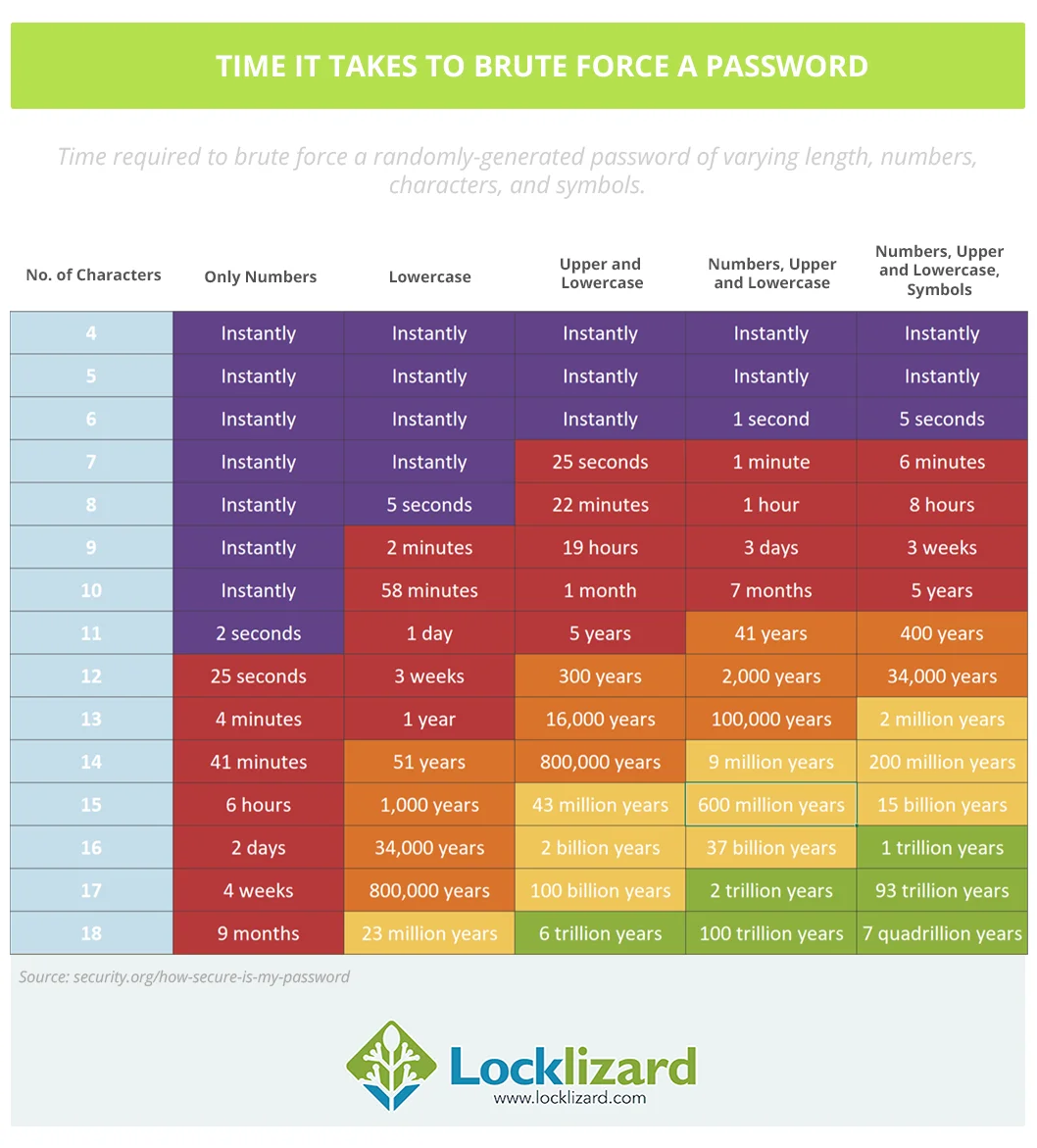
To add more security when protecting your PDFs with a password, it is important to ensure that the password is substantial, with at least sixteen characters and a mix of lowercase as well as uppercase letters, including symbols and numbers. Using special characters, punctuation and digits will enhance the strength of the password significantly. While adding password protection to PDF files it is important to remember that the password will be shared with others who are authorized to open it. So, do not use any passwords from your personal accounts.
Different PDFs containing important information and confidential data should have different passwords for every file and not a word that can be easily guessed. If the password is difficult to memorise or remember, it can be written down and stashed away in a safe place outside the computer.
IT experts recommend that PDF passwords should be changed several times during the course of usage and transmission. For example, if a PDF has to be sent to numerous users, a unique password must be employed for every user, as a single password sent to all users can be easily compromised. However, this means protecting the PDF separately for each user, which is cumbersome and time-consuming. Not to mention having to keep a record of all the passwords in use for each user. The reality is that using unique passwords for each password protected PDF is unlikely to happen as it introduces a management overhead that is costly to maintain.
 Using strong passwords to protect PDF files
 Using strong passwords to protect PDF files
Educating employees about the significance of using strong passwords to protect PDF documents is a fundamental step in ensuring that passwords are the first line of defence for document security. It is imperative that employees are made to regard their passwords in the same manner they would protect their personal information or physical keys.
It is important that employees avoid creating weak passwords that have the following features:
- Actual name of the user, surname or organisational name.
- An easy to guess dictionary word; using dictionary words is a bad idea because PDF password removal programs target common words located in a dictionary to attack the system. These are referred to as ‘dictionary attacks.’
- Words such as ‘password’, ‘123456’, ‘ABC’, ‘XYZ’ etc. are extremely common and easy to guess.
- Some letter substitutions, such as using ‘!’ Instead of ‘I’ or ‘$’ in place of ‘S’ can also be easily guessed.
- Passwords that have been written on a piece of paper and irresponsibly maintained.
- Common passwords for a number of people.
Some common tricks that can help make passwords stronger as well as memorable, include:
- Making use of entire passphrases or sentences as passwords.
- Using only the first alphabet of every word of a popular passphrase or a quote, such as NitMoI! (Necessity is the mother of invention!)
- Stringing together simple and short words and tying them with symbols or figures, for instance ‘Sea+7+blue’
Removing the open password from a PDF
 Removing the open password from a PDF
To remove the password security controls from an open PDF document (at least in modern PDF versions), you must enter it. If the PDF document is controlled with a server-based security policy, it can be changed only by the server administrator or the author of the policy.
If you don’t know the password, a PDF password remover tool can remove the open password, especially if short and/or weak passwords have been used. You can find more info on cracking password protected PDF files here.
Our research suggests that even passwords that have letters, numbers, and symbols can be cracked by a powerful AWS server in hours or minutes.
Technical weaknesses in PDF security
 Technical weaknesses in PDF security
If you add a strong password to a PDF, upload it, and never share the password with anyone, it’s relatively safe. It’s not, however, invulnerable to attack or tampering. Researchers across several German universities have shown three types of attack a determined attacker can perform due Adobe’s use of Cipher Block Chaining Encryption (CBC). As Adobe only encrypts the contents of the file itself (not metadata etc.), and CBC has no integrity control, the following are possible:
- Direct exfiltration attacks: The attacker adds content to an encrypted PDF document such as a submit form function or JavaScript which sends to the PDF contents to their control server.
- Malleability attack: The attacker can change parts of a cipher block if they known part of the plain text encryption that was encrypted. Because Adobe both encrypts editing permissions within the file and stores them in plaintext, attackers always know which bytes of the file are encrypted. This could be used to inject malware/phishing attacks or manipulate encrypted data to send the contents of the file.
How vulnerable users are to these attacks is largely dependent on the PDF reader they use to open the document. The bad news is that all popular PF readers are vulnerable to exfiltration with no user input via at least one of these methods.
The problem with decentralized PDF security
 The problem with decentralized PDF security
Disregarding the encryption security for a moment, the decentralized nature of PDF passwords creates broader issues. To apply PDF password protection, users typically:
- Open the document in Acrobat (or another PDF reader)
- Select “Encrypt with password”
- Type an open and/or permissions password and hit “Save”
While this is all very intuitive, it does raise several problems. Firstly, the choice of password is under user control rather than admin. Users are more likely to set memorable passwords, which are usually shorter, more vulnerable to dictionary attacks, and less likely to contain numbers and symbols. Additionally, the user may not understand the inherent vulnerability of Adobe’s password system or the risks of using online tools to apply password protection. You could end up with hundreds of unprotected PDFs stored on a third-party server due to shadow IT usage.
Exacerbating this problem is the lack of centralized PDF security management. While a user can change a password on their copy of a PDF after it’s been set, there’s no way to do so for documents that have already been distributed. A PDF distributed with an insecure or compromised password will always be vulnerable. This is particularly egregious when you consider that there’s no built-in secure way to share passwords. Frequently, they are sent through insecure channels such as email or messaging services — a problem not present in other encryption systems, such as PGP.
Password protecting PDFs without Acrobat
 Password protecting PDFs without Acrobat
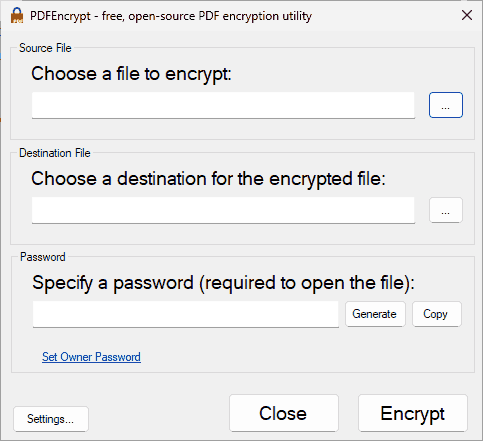
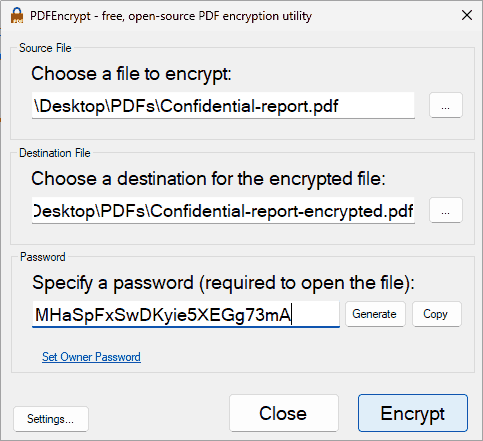
If you don’t want to use Adobe Acrobat, you can use an online tool or download an app like PDFEncrypt. Downloaded software is preferable to a web app that requires uploading unprotected files to an unknown server, risking them being compromised. That said, you should still be cautious about the app you use. We chose PDFEncrypt because it is free and open source.
Unfortunately, these applications implement password protection in the exact same way as Adobe, so it’s equally useless at preventing unauthorized sharing.
- Open PDF Encrypt.
%27%20fill-opacity%3D%27.5%27%3E%3Cellipse%20fill%3D%22%23fff%22%20fill-opacity%3D%22.5%22%20rx%3D%221%22%20ry%3D%221%22%20transform%3D%22rotate(77.7%20140.8%20249)%20scale(24.95351%2045.22701)%22%2F%3E%3Cpath%20fill%3D%22%23fff%22%20fill-opacity%3D%22.5%22%20d%3D%22M187.7%20351.9h83v17h-83z%22%2F%3E%3Cellipse%20fill%3D%22%23fff%22%20fill-opacity%3D%22.5%22%20rx%3D%221%22%20ry%3D%221%22%20transform%3D%22matrix(-2.42018%20-16.69877%2039.8948%20-5.78201%20351.7%2062.9)%22%2F%3E%3C%2Fg%3E%3C%2Fsvg%3E)
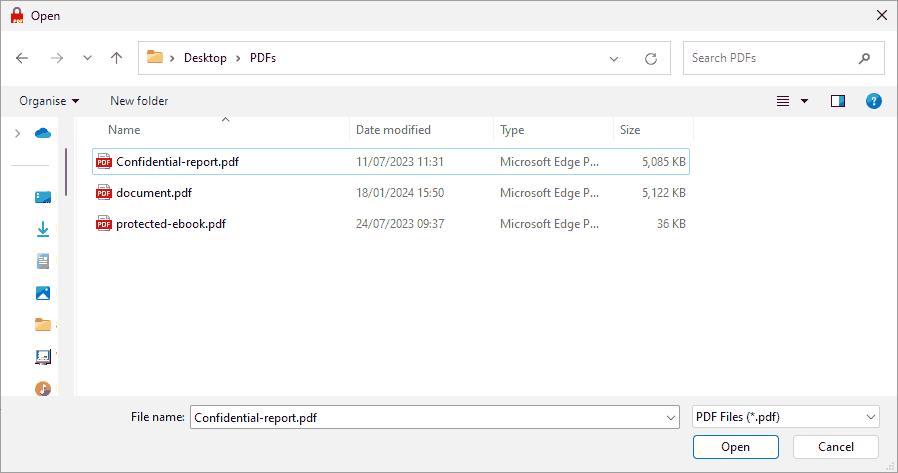
- Press the three dots next to “Choose a file to encrypt”, browse to your PDF, and open it.
%22%20transform%3D%22translate(1.8%201.8)%20scale(3.50781)%22%20fill%3D%22%23fff%22%20fill-opacity%3D%22.5%22%3E%3Cpath%20d%3D%22M221.3-13.9l8-4%2021.4%2041.8-8%204zM39%20119h22v13H39z%22%2F%3E%3Cellipse%20cx%3D%22132%22%20cy%3D%2237%22%20rx%3D%2221%22%20ry%3D%2221%22%2F%3E%3C%2Fg%3E%3C%2Fsvg%3E)
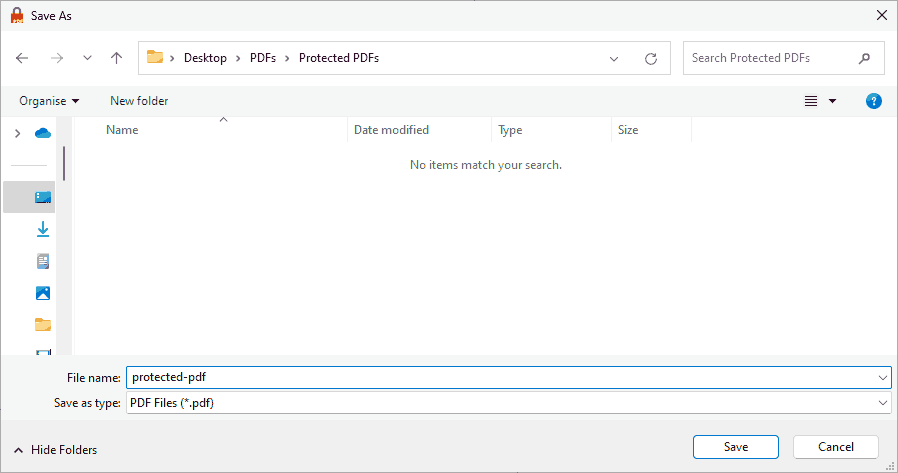
- Press the three dots next to “Choose a destination”. Browse to where you want to save the encrypted PDF, and press “Save”.
%22%20transform%3D%22translate(1.8%201.8)%20scale(3.50781)%22%20fill-opacity%3D%22.5%22%3E%3Cellipse%20fill%3D%22%23c5c5c5%22%20cx%3D%2215%22%20cy%3D%22127%22%20rx%3D%2233%22%20ry%3D%2222%22%2F%3E%3Cellipse%20fill%3D%22%23fff%22%20cx%3D%22155%22%20cy%3D%2236%22%20rx%3D%22137%22%20ry%3D%22137%22%2F%3E%3Cpath%20fill%3D%22%23cecece%22%20d%3D%22M-11%2096l3%209%2026%201z%22%2F%3E%3C%2Fg%3E%3C%2Fsvg%3E)
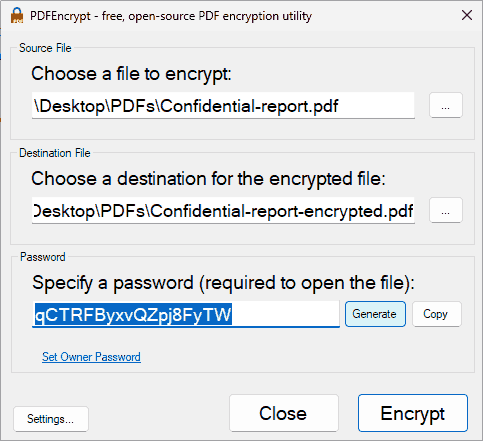
- Enter the open password for your PDF or generate one using the button.
%22%20transform%3D%22translate(1%201)%20scale(1.88672)%22%20fill-opacity%3D%22.5%22%3E%3Cellipse%20fill%3D%22%23a8a8a8%22%20cx%3D%2262%22%20cy%3D%22159%22%20rx%3D%2223%22%20ry%3D%2211%22%2F%3E%3Cpath%20fill%3D%22%23fff%22%20d%3D%22M186%2021h31v23h-31z%22%2F%3E%3Cpath%20fill%3D%22%23fff%22%20d%3D%22M210%2022.8l14.8%2015.9-38.8-2.1%202.3-19.4z%22%2F%3E%3C%2Fg%3E%3C%2Fsvg%3E)
- Press “Encrypt” to protect the PDF.
%27%20fill-opacity%3D%27.5%27%3E%3Cpath%20fill%3D%22%23fff%22%20fill-opacity%3D%22.5%22%20d%3D%22M401.8%2044.3L421.1%2070l-21%2015.8-19.4-25.6z%22%2F%3E%3Cpath%20fill%3D%22%23fff%22%20fill-opacity%3D%22.5%22%20d%3D%22M412.6%2092.8l-5.6-51L385.6%2062l-2%2011.6z%22%2F%3E%3Cpath%20fill%3D%22%23e0e0e0%22%20fill-opacity%3D%22.5%22%20d%3D%22M353.9%20168.4l81-121.8-57.4-8.1%20112.3%2044.4z%22%2F%3E%3C%2Fg%3E%3C%2Fsvg%3E)
Other programs to protect PDFs
Most PDF writer applications provide PDF password security along the lines of Adobe Acrobat. See PDF password protection to protect PDF files.
Secure alternatives to PDF Password Protection
 Secure alternatives to PDF Password Protection
Using passwords to protect PDF documents that contain classified or sensitive information is no longer relevant in today’s advanced technological landscape. Password protecting Adobe PDF files does not prevent sharing since users can just share the password with the PDF or enter and remove it before sharing an unprotected file.
Thankfully, that same advanced technological landscape means there are various other protection options available. Including (but not limited to):
- PGP encryption: PGP encryption is essentially just better than password encryption. Rather than using a fallible, guessable password that you have to share with others, you use a pair of random private and public keys. The user only ever has to share their public key, keeping their private key (and thus the ability to decrypt documents meant for them) secret. However, PGP only protects the document when it’s in transit or at rest, not when it’s in use. It doesn’t prevent users from editing or copying, and once a document is decrypted, it stays that way.
- Access controls: Many older enterprise solutions for document protection use local access controls as a way to control use. However, these are limited to permissions such as read, modify, and delete which aren’t granular enough for many use cases. Additionally, configuration is difficult, and they typically require an enterprise-controlled device to enforce, which just isn’t the reality in many modern workplaces.
- Cloud document security: There are dozens of cloud solutions promising document security, from cloud storage services to secure data rooms. They all generally have the same problem — controls in the browser are too easy to bypass. Tools like Tampermonkey and LLMs make it trivial in most cases to create scripts to remove restrictions and download unprotected copies.
- DRM: Digital Rights Management software can be extremely effective at protecting PDFs, provided you choose the right solution. DRM that uses public key technology, secure and transparent key transmission, and encrypted key storage is the best way to ensure sensitive data in PDF documents remains protected.
Why Locklizard DRM for PDF Protection?
 Why Locklizard DRM for PDF Protection?
Locklizard is the leader in PDF document protection software and uses US AES encryption, public key technology, and Digital Rights Management to protect PDFs beyond simple passwords. Our PDF DRM protection was created by a group of information and document security specialists with a combined 70-years of experience. We’re headed by a management team that has created the UK’s first file security software, created PGP encryption sofware, and contributed to ISO standards. Information publishers across the world trust Locklizard to secure PDF files against unauthorized access and misuse, including governments and Fortune 100 companies.
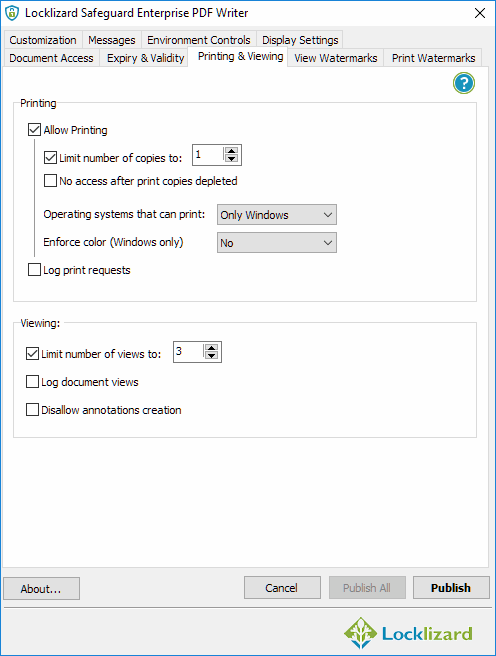
Safeguard PDF Security protects PDF files with AES encryption without the use of passwords, ensuring your protected PDF files are not exposed to simple security weaknesses. Our secure PDF Viewer software and web based licensing system transparently manages decryption keys so there are no passwords to enter or manage. PDF files are locked to specific devices so they cannot be shared with others, and the document owner can expire and revoke documents at any stage, enable offline use, apply dynamic watermarks, stop printing, and prevent screen grabbing of content.
In conclusion, securing your sensitive PDF files with passwords is not a sensible option, given the number of ways in which password protected PDFs can easily be cracked and the time required to manage each password. If you are serious about securing PDF files, then look for a PDF DRM solution that does not rely on passwords.
FAQs
 FAQs
FAQs
How do I password protect a PDF file for free without Adobe Acrobat?
There are numerous online tools that let you password protect a pdf for free. Just typing in “protect pdf with password” on Google will get you a ton of sites. It’s worth noting, however, that although these tools aren’t Adobe Acrobat, their protection functions in a similar way (using passwords) – meaning it can be easily bypassed or removed.
How do I send a password protected PDF securely?
If you’re just looking to protect your PDF from interception (in transit), apply a unique, secure password with software like Acrobat and send the file as usual. Communicate the password to the recipient either in person or through a different communications medium/encrypted message.
Of course, you still need to trust that the recipient will not share your document. Also, once decrypted it is trivial to remove Adobe editing and printing restrictions and remove the open password.
Why can’t I password protect my PDF?
It may be because the PDF is already password protected. Check the security properties of your Adobe Reader application to ensure this isn’t the case.
Does password protecting a PDF encrypt it?
Yes. However, the decryption key is locked behind a simple password. Passwords are more likely to be guessed, shared, or otherwise compromised than other encryption and decryption methods.
How strong is PDF password protection?
Not very strong at all. While the 128-bit or 256-bit AES encryption algorithm used is strong, tying it to a password is a bad idea. As well as being able to be guessed or brute forced, passwords can be shared with unauthorized users to give them access to the document. And, once the document has been opened, it can be easily removed anyway.
So, PDF password protection is only strong if you a) use a strong password and b) trust the recipient completely.
Can a password protected PDF be tracked?
There are various plugins that let you protect a PDF with Acrobat and then track its use, but these plugins typically represent a security risk. Most require you to enable JavaScript in the document to work or turn off security in the document, opening users to malware. Others can be overruled by a plugin by a different manufacturer or just break every time there is an Acrobat update.
Cloud-based systems that protect PDF files so they can be viewed in a browser, require entry of login credentials which can be easily shared so you have no idea who you are really tracking.
Bottom line, then – the best tracking is found in a PDF DRM solution like Locklizard Safeguard, which does not allow third-party plugins and can effectively prevent printing, editing, copying, screen grabbing, and more. It locks PDF files to devices so they cannot be shared, and there is no password for users to enter or share with others. Safeguard Enterprise PDF can track each open and print, creating a log of the email and IP address so you can easily identify the user.
Where are PDF passwords stored?
Permissions passwords are stored within the PDF itself and do not use encryption – instead relying on PDF reader applications to honor the password.
On the user side, PDF passwords can be stored anywhere. In the best-case scenario, complex passwords will be stored in the recipients’ brains and not written down anywhere at all. Realistically, though, the best you can hope for is that they’ll be stored in a password manager (which represents a single point of failure). Likely, you’ll find them on post-it notes and plaintext files instead, which represents an even greater security flaw.
Customer Testimonials