





Keep a secure audit trail of who is using your documents and when, and whether users are trying to register licenses from unauthorized locations (i.e. users are sharing them with others).

|
|
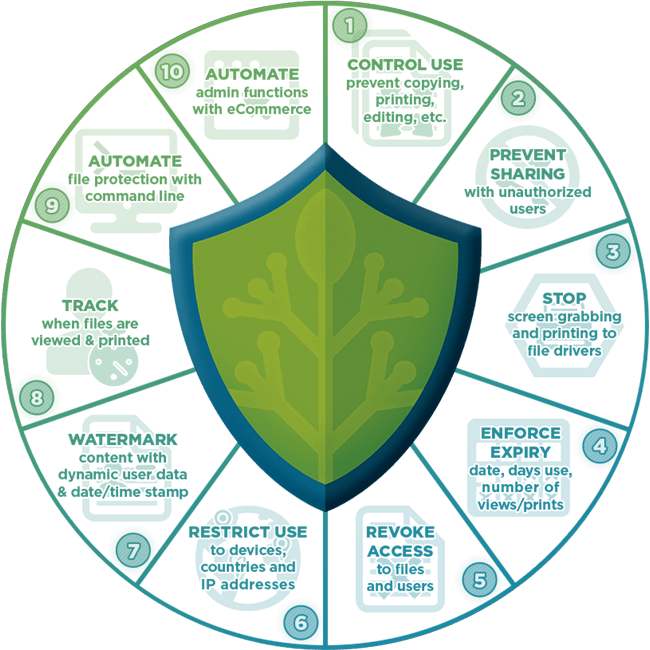
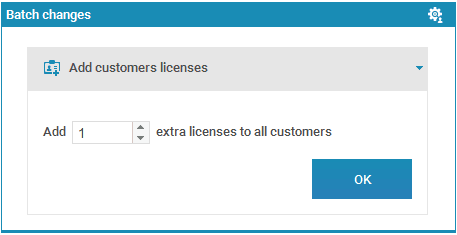
Safeguard Enterprise DRM delivers enterprise rights management for PDF documents, supporting the larger publisher or corporate enterprise that needs extra functionality and flexibility for controlling document use – additional security for protecting PDF documents, delegating administrator access, message & display customization, batch commands, etc., and enables publishers to track how their documents are used.
 |
Control sub-administrator accessControl who can protect PDF documents, assign document access, and administer the system:
|
 |
Lock PDFs to locationsLock PDF files to:
Block or allow access at the country level on a global & user basis. If you don’t know the user’s IP address or country, Safeguard Enterprise PDF DRM can pickup and enter this information for you when the user registers their license or uses the Web Viewer for the first time. |
 |
Track & log document use
|
 |
Transfer licenses between devicesLet users transfer their licenses from one device to another. So, for example, if device A is no longer used then device B can be used instead (a transfer from device A to device B will deactivate the license on device A and activate it on device B). |
|
|
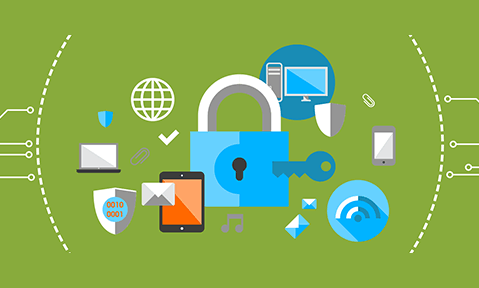
Users cannot register or use documents if they are in a banned country location or using an unauthorized IP address. Wider country access controls can be fine tuned with individual or ranges of IP restrictions. For example, you may have a policy that allows only users located in the US to use your protected documents but you want to allow access to a specific user from a different country. Or you may want to block a specific country at the global level but allow access from that country for a specific user which is also tied to an IP address.
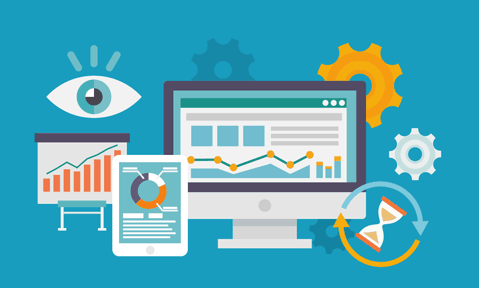
Just like Safeguard PDF Security, Enterprise PDF DRM logs when users:
With Enterprise PDF DRM you can also track PDF files & log:
Keep a secure audit trail of who is using your documents and when, and whether users are trying to register licenses from unauthorized locations (i.e. users are sharing them with others).

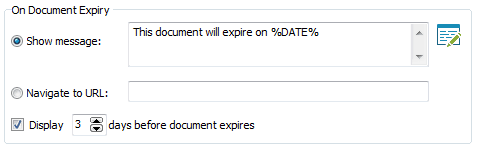
Safeguard Enterprise DRM gives you total flexibility when requiring users to connect with the administration server. Enforcing users to connect means you can perform instant revocation, but it may be inconvenient if a user does not have an Internet connection available (say on a plane/boat) and they need to view protected documents. To solve this, Enterprise DRM provides additional functionality over Safeguard PDF Security:

As with Safeguard PDF Security you can set documents to never check with the server or always check if that is your business model.