


Locklizard 
 
Sales
North America Tel: 800 707 4492
UK & Europe Tel: +44 (0) 1292 430290
Products -> Lizard Safeguard Enterprise PDF DRM


Safeguard Enterprise PDF Security
Rights Management PDF: PDF DRM Security Software
pdf security


PDF RIGHTS MANAGEMENT SECURITY FEATURES


  COMPLETE CONTROL OVER PDF DOCUMENT USAGE  

Prevent, allow or control the following functions:

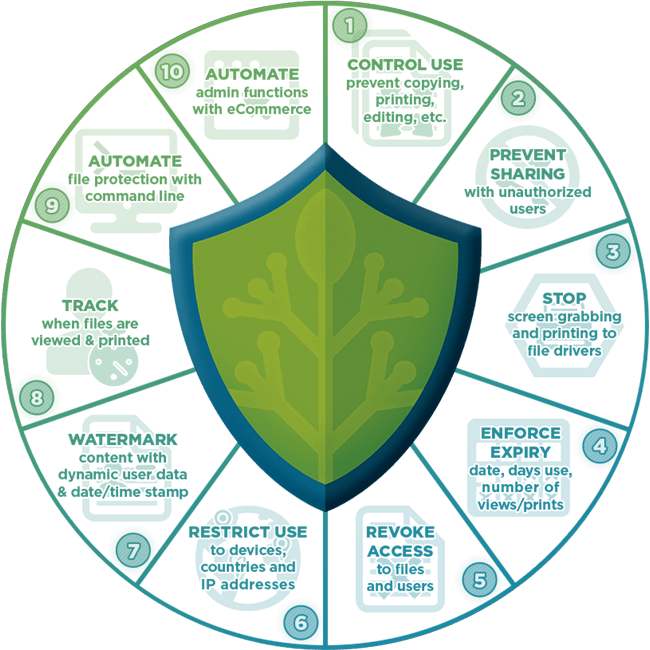
  • Viewing, copying, modifying, and saving documents and contents
     
  • Use of your documents in thin client environments (e.g. Citrix).  This enables you to prevent users installing one common copy for all available envrionment users.
     
  • Printing documents (including the number of times your documents can be printed)
     
  • How many times your documents can be viewed
     
  • How long your documents can be viewed (days, months, years, forever, or a specific end date)
     
  • How long users can view a document offline: always n number of days or they must connect every time  to an administration server before they can view your protected documents
     
  • Use of  Windows print screen and screen grabber applications - prevent people taking screen shots of your documents
     
  • Printing to file, email, PDF format (Acrobat distiller, etc.), common image printers, etc. are automatically prevented
     
  • Sharing protected documents is prevented (users must have first registered with you and have the correct license and decryption keys in order to view a protected PDF file.  Decryption keys are stored encrypted and locked to individual computers, thus ensuring they cannot be shared)
     
  • Expiring and revoking distributed documents at any time.  Automatically revoking access once view and/or print limits have been reached, managing offline access, and enforcing content management system security policies no matter where your documents are
     
  • Changing the number of print and view allowances even after distribution
     
  • Suspending documents if you don't want them viewable for a period of time, and alter their expiry dates
     
  • Enforcing your own house style and appearance by ensuring that documents may only be seen in the format you have decided.


  DOCUMENT WATERMARKING WITH DYNAMIC VARIABLES

You can add custom text, system data, and graphic image watermarking to a document.  These are displayed when a document is printed and/or viewed in the secure viewer software.  The following items can be displayed -  images, custom text, system data (date/time, user name, company name, email address). System data are dynamically applied when the document is displayed and/or printed, ensuring you only ever have to protect a document once in order to customize it for multiple users.


Watermarks can be prevented from displaying on the first page of your documents (useful if you want your cover page and branding to appear unmarked whilst the rest of the document is watermarked) and can be shown either behind or in front of your PDF content.


User information can be displayed to deter photocopying, and moiré images (available for download from the LockLizard web site) can be used to ensure photocopying produces extremely poor quality copies.


  CUSTOMER AND DOCUMENT EXPIRY, INCLUDING INSTANT REVOCATION FOR PREVIOUSLY DISTRIBUTED DOCUMENTS, AND PERSISTENT VERSION CONTROL  

User expiry
Safeguard Enterprise gives you total control over when user accounts expire and when access to your PDF documents expire.  Users, for example, may subscribe to one of your publications for a year, and all documents in that publication are accessible to them for a year.  After a year, they will still be able to view their existing subscription documents, but not any new ones that are published after their subscription period has ended, unless of course they pay for another years subscription.


Document expiry
You have granular can control of PDF document expiry.  Regardless of a user's subscription to your publications you may have certain documents that are time sensitive or time-limited and must not be usable after a certain date.  It also means you can sell documents that are accessible for limited time periods, perhaps at a lower cost, rather than being available forever,  enabling you to reach new markets that are price sensitive.   You can be confident that those  users can only  view a document for a day or  a week, or whatever you choose. This feature also ensures that only the authorized or current versions of documents  are used after publication because obsolete versions can no longer be accessed.


Documents can also be set to automatically expire once a specified number of views and/or prints have been reached.  You can specify both an expiry date and a number of views (e.g. 10 views and expiry 5 days from first use) and whatever expiry option is reached first will cause the document to expire.


Instant revocation
You can also force users to connect to the administration server (happens transparently) before they can view your protected PDF documents.  This can be every time they want to view your documents or after a certain number of days.  If you choose a number of days then after the length of time you set has passed users must go back online to gain further access.  


Using this option you can instantly revoke customer access to previously distributed documents as the access approval required to view your protected PDF documents is instantly expired.


  COMPLETE OFF-LINE DOCUMENT  PROTECTION

Your controls are locked into each protected PDF document so  it is not essential for users  to have to connect to the Internet in order to view your protected PDF files (assuming of course that they have the correct decryption key stored on their computer).


Whether you want users to connect to the Internet or not to use your protected PDF documents is a decision you make when protecting them.  This control applies to all users of the document.


  PDF PRINT CONTROL  

Safeguard Enterprise gives you complete control over your PDF printing with strong PDF print protection. Prevent printing of your protected PDF documents on Windows, Mac or all operating systems.


If you decide to allow printing you can control how many times your protected PDF documents can be printed.  Document access can be automatically revoked once this number has been reached.


  UNIQUE CONCEPT OF PUBLICATIONS FOR SIMPLER DOCUMENT ADMINISTRATION

The concept of the publication is a way of associating documents that are logically related. Different enterprises may see this in different ways:

  • a publisher could see it as the issues in a subscription to a magazine or a series of reports
     
  • a training course provider could see it as the content of a course
     
  • a lawyer could see it as the items making up a bundle
     
  • a businessman could see it as the collection of documents making a bid
     
  • a corporate entity could see it as a collection of documents for a particular business unit or  department (e.g. sales documents), or for issue to particular groups of third party contractors.


So being able to bring together collections of documents  to create a publication makes the administration of connected documents easier for the publisher, and makes those documents automatically available to authorized users.


If you choose to publish your PDF documents as separate items, then each one will have it's own encryption key.  However, where users are purchasing subscriptions to publications they only need to register their subscription once and then are able to read each issue as it arrives.  Also, you as the publisher may find it easier to associate documents with publications.

To meet this operational flexibility, if PDF documents are protected into a publication, the encryption key of the publication is used to protect them rather than generating a new random key.  This means that the customer is able to immediately use a new issue regardless of how you ship it to them (eMail, flash card, CD-ROM for instance), and without you having to grant individual  access to that document on the administration system. Of course if you send them a document that is not part of a publication that they have been granted access to, then they will have to connect to the administration server to retrieve the new key.  And if you set the rules so that they must connect to the Internet then that will be enforced.

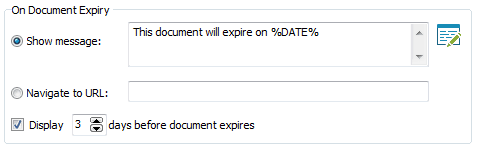
Safeguard Enterprise enables you to manage your subscription base  effortlessly by providing individual publication expiry on a per user basis - you  can  expire a user's access to different publications at different times, and manage this all from a single user account.  You can also choose when  the document expiry message (or redirection to a URL of your choice) is displayed (e.g. 15  days before a document expires),  giving users ample time to renew their subscriptions.


  CUSTOMIZABLE MESSAGE TEXT AND SPLASH SCREEN

When you set up user accounts on the administration server, users are automatically sent an email to the address you entered, with a download link to the secure PDF viewer software, and their license file.  This email is automatically customized with your company name and email address in it so users know who to contact if they have any problems accessing your PDF documents.  You can choose whether this email is sent on an individual user or global basis, and whether to send the license file as a link or an attachment. If the user does not receive their license file for some reason, then a simple selection of a check box on their account in the administration system will resend it.

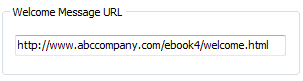
You can also specify the text that will be displayed if a user has not been authorized to use your protected PDF documents - e.g. where they can purchase a license, or who to contact, or alternatively you can redirect them to a web page where this information is displayed.


Each time a protected PDF document is loaded, a splash screen can be displayed.  You can insert your own image here (say your company logo and maybe a brief message) to customize Safeguard Enterprise to represent your company image.  You can specify how long the custom splash screen is shown, or decide not to have it displayed at all.


You can customize the text that is shown when your protected PDF documents expire (or alternatively you can redirect users to a web page where this information is displayed), and choose to have this text displayed when your documents expire or n days before.


  PDF DRM THAT IS SIMPLE TO USE

Safeguard Enterprise provides a complete PDF DRM security solution that is easily implemented by even the most novice of users.

Protecting PDF documents couldn't be simpler.  Right-click on your PDF file(s) to protect them, set the document rights (use of printing - including how many times, etc.), press the OK button and your PDF files are instantly protected (PDF files are encrypted and document usage  rights applied).  PDF documents can be published on their own or assigned to publications for simpler administration.


You can also choose where you want to save your protected PDF files, and you can enter a document description in addition to the flename for later reference.

Multiple PDF files can be selected in Windows Explorer and you can apply the same document controls to all of them in a single click.


  BATCH AUTOMATION FOR PDF PROTECTION AND DRM CONTROLS - NO USER INPUT REQUIRED

The Safeguard Enterprise Command Line Utility (optional extra) allows you to automate actions that would otherwise have to be carried out manually through the Writer GUI. Commands can be run from the DOS prompt or from a batch file without the need for manual input or user intervention.  All the options available through the Safeguard Enterprise Writer GUI are also in the command line utility.

See optional pdf command line encryption.


Organizations internally can also use this tool to rapidly protect documents for secure distribution and to control what DRM protection features are made available to sub-administrators.


  ENTERPRISE WEB BASED ADMINISTRATION

Once you have secured your PDF files setting up users  on the administration system (user name, company, email address) and allowing them to use one or more of your publications or documents is simple.  Where documents belong to a publication, granting user access to the publication automatically makes them available.

The administration system can handle a very large number of users, documents, and publications, and has advanced search and sort filters to help quickly find information (e.g. just show all expired documents).  You can achieve the same results in different ways (e.g. you can grant  a user access to a publication by either  selecting the user and then choosing the publication, or selecting the publication and choosing the user).  You can perform actions on multiple users, documents, and publications in one go, or use the batch options to quickly apply changes to all users.  Choose the approach that suits you best.


Safeguard Enterprise records all the document protection options for each individual document on the administration system, and you can customize record displays, add and  edit descriptions.  The system can be completely backed up and restored, and you can export specific sections of data for external processing.  For extra security, a manual logon/logoff process is used.


  DATA IMPORT / EXPORT

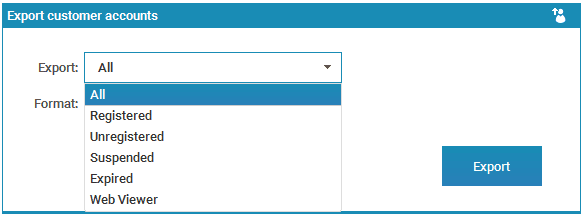
Safeguard Enterprise enables you to import user data into the LockLizard Administration system, and export customer, document, and publication information to separate CSV files.  You can choose to export all the available information, or just subsets - for example, all users that have not registered.

Exporting information in a CSV format makes it readily accessible for spreadsheet manipulation and analysis.  CSV imporing means you can interface systems that do not obey consistent standards.


  ADVANCED SEARCH AND SORT FILTERS

Safeguard Enterprise provides advanced search and sort filters.  You can search by ID, name and/or email, display records in date or alphabetical order, and specify  the number of records displayed on each page. You can show only specific classes of customer accounts (e.g. only customers that have registered, or whose accounts have expired), or documents that have been published to a specific publication or have limited prints/views allocated to them.

The system has been designed with flexibility in mind, so you can search and filter certain subsets of information and then perform specific actions on those selections.


  BATCH CHANGES

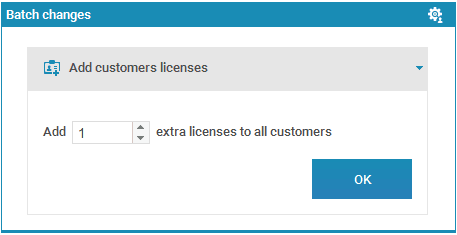
Not only does Safeguard Enterprise enable you to select multiple customer accounts to perform specific actions on (e.g. giving several  customers access to one or more new publications or documents you have published), but it also provides a batch change feature to enable you to perform specific actions on ALL your customer accounts in one go.  This provides a quick way of updating customer accounts without you having to manually select individual or multiple  accounts to perform specific actions on.

The following batch changes are available:

  • Add extra licenses
  • Change account validity (start and end dates)
  • Delete customer accounts that have expired / are suspended / not registered
  • Resend registration email
  • Grant document access to one or more documents
  • Grant publication access to one or more publications


  USER, DOCUMENT, & SYSTEM AUDITING

The administration system records the date, time and IP address of users when they first connect to the server to obtain their decryption keys.  It also records whether a user has tried to register with you more than once (i.e. on another computer), when this occurred, and the IP address they were using.


The use of individual documents can also be audited so you can see who viewed and/or printed them and when this occurred.

Further, the administration system also logs when administrators log on, when they performed an action (ie. adding, deleting, or modifying a record), and when this occurred.


  REPORTS & STATISTICS

In the statistics section, the dashboard provides you with a summary of users, documents, and publications, backups and system level actions.


This includes:
  • Total number of users, unregistered users, registered users, suspended users, last registered customer, expired users, deleted users, last added, last deleted, last import, last export, last batch changes made
  • Total number of documents, suspended documents, expired documents, most viewed, most printed, last published, last export of document information
  • Total number of publications, last added, last export
  • Total number of backups, date and time of last backup, last restore
  • Last logon, last action of an administrator.

Selecting an entry shows more detailed information.  For example, clicking on 'suspended documents' will display  all the documents that are suspended.

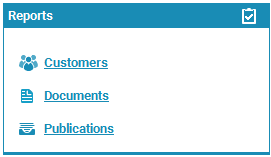
Reports can be run against users, documents, and publications, exported and then saved.  For example, you might want to run a report on what users have access to document x, or what users have been added in the last week.

System activity logs detail what system events have occurred (admin logon, addition/edit/deletion of records).

Pie charts provide a quick visual summary of the principal system details.


  E-COMMERCE INTEGRATION FOR A 24x7 SERVICE

The administration system lets you import existing user data (perhaps from your accounting system, LDAP, or Active Directory) or you can integrate Safeguard Enterprise with your existing e-commerce system to help provide a totally automated secure document distribution service.  


Once your users pay or are authorized to use a document or publication, their details are automatically set up on the administration server and simultaneously assigned appropriate publication / document access rights.  So users can view your protected PDF documents straight away, license file information is sent out automatically by email, and/or this information can be displayed on a web page if you prefer.  Data can be exported from the administration system for use in an accounts package or CRM system.

See optional ecommerce integration.


  CHOICE OF LICENSE DELIVERY

User licenses can be  sent automatically by email (either as an attachment or as an embedded link)  or you can choose to display them on a web page (in conjuction with the ecommerce module) for instant license delivery.  You can also choose whether individual users are sent license files, and can resend registration emails if they have been blocked by SPAM filters or deleted by mistake by the user. 

Every license file emailed from the administration system  can also be sent to a monitor email address of your choice so that a record is available of who has been sent their license files, which you may also use to resend licenses.


  CHOICE OF HOSTING

You can either use our managed service (hosted on our own servers so no set up configuration required), or you can host the administration system on your own server (we can even set up the system for you or you can choose to do this yourself if you prefer).

Hosting on our servers requires a yearly maintenance fee but ensures you are up and running from day one,  as no server configuration is required at your end - saving you time, hassle and money.


  NO LIMIT TO THE NUMBER OF PDF DOCUMENTS YOU CAN PROTECT OR THE NUMBER OF USERS THAT SUBSCRIBE TO YOUR PUBLICATIONS

Unlike other PDF DRM products, you are free to protect as many PDF  documents as you want and manage as many users as you want.  There is no limit to the number of PDF documents you can  protect or the number of users you have viewing those protected PDF documents.


  FREE SECURE PDF VIEWER

Our secure PDF viewer software is totally free of charge to your customers or users.  It can be downloaded either from our web site or from yours, or you can distribute it freely via email.


Our free stand-alone secure PDF viewer has a small footprint (so users don't have to spend hours downloading and installing Adobe Acrobat), is fast to load, and ensures all the DRM controls are applied without exposing you, as the publisher, to known Acrobat flaws and cracks.  It is not invasive and does not use root kit technology, javascript, or any of the security disasters those kinds of systems have previously created.


  TRANSPARENT REAL-TIME WEB BASED CUSTOMER AUTHORIZATION

When a user views one of your protected PDF documents for the first time, the secure PDF viewer software will check if it has the correct key to view it.  If it does not, the viewer will check with the administration server to see if the user has been granted access to the document.  If access is allowed then the decryption key will be transparently relayed to the client.  If not, your custom message will be displayed (or they will be redirected to a web page  of your choice) telling them how to contact you.


  GOVERNMENT STRENGTH PROTECTION OF YOUR DOCUMENTS

To ensure complete protection of your PDF documents, they are encrypted using industry-standard encryption - the US Government approved algorithm, AES, at its strongest setting, 256 bits.

Encryption allows us to enforce the digital rights management controls applied to your documents.   Since no decryption keys are included with the documents, an attacker faces the (currently) impossible task of breaking the encryption algorithm itself.


  NO PASSWORDS TO SEND, ENTER, MANAGE, FORGET OR PASS ON TO OTHERS

In addition, strong public key technology is used rather than weak password mechanisms that are easily crackable.  Not using password protection ensures bullet-proof protection of your documents -  there is nothing to enter so the system is not vulnerable to password attacks.

You don't have to distribute passwords to users and they don't need to type in access codes to get going. Decryption keys are transparently relayed to the client computer and stored in encrypted format.  There are no passwords to enter, manage, compromise, forget or pass on to others.

Whilst we use public key technology, no key management is required by you as the publisher or by your users or users, as it is all handled transparently by the licensing system.  There are no certificates to revoke when you want to terminate a users access or any other PKI complexity.

LockLizard provides a secure exchange mechanism in order to move the keys to the user's desktop only after validating the user's authorization to receive the key.

Whilst user keys are stored on the user's computer, they are also locked to that computer and cannot be moved.  So the user must be at that computer in order to be able to use the licensed documents.   Any attempt to move the keys system to another computer will invalidate it.


  NO PDF SECURITY RISKS

Safeguard Enterprise uses it's own decryption application (a secure PDF viewer) rather than relying on a plug-in, or worse, JavaScript, to present your information.  This  ensures the security of your information is always under the tightest of controls, and is not vulnerable, or exposed to any errors in third party applications.  Protected PDF documents are decrypted in the secure PDF viewer software which applies the necessary DRM controls and ensures your PDF content cannot be compromised by other applications, JavaScript, plug-in failures or conflicts, or the common Adobe PDF security flaws and cracks.

Read this article published by Bryan Guignard, an Adobe Certified expert on why we don't use Adobe's implementation / Adobe plug-in for protection of your PDF documents.

Information is decrypted on-the-fly and is not saved to disk or hidden in temporary format or to the Windows swap file.  We do not create extra files on disk that can be copied to another computer along with the  protected PDF files so they can be easily shared and viewed.

You create secure PDF documents on your own computer.  The source PDF files (unprotected files) are never exposed to a web server where they could be easily compromized.


Overview
Features Overview
Business Benefits
Technical Information
Screen Shots
Product Walkthrough
Video Tutorials
FAQs
Product Datasheet
Product Manual

Secure PDF Viewer
Secure PDF Viewer Demo


Command Line Encryption
Ecommerce Integration
Own Branding
Custom Email


Settling on LockLizard DRM was an easy decision. The PDF DRM security software is simple to use, the implementation very very easy, and the technical support is very responsive and helpful.


Customer Testimonials
Customer Case Studies
PDF DRM Reviews


Evaluate our DRM software
Pricing for our DRM software
Our DRM Technology
DRM Business Benefits
PDF DRM - why LockLizard?


Home | Products | Purchase | Downloads | Education | Compliance | Our users | About Us | News | Support | Articles | Guides

    Privacy Policy             SITE MAP