




Overview
PDF protection with PDF DRM security to protect PDF files
Safeguard PDF Security stops unauthorized distribution of your PDFs, controls what users can do with them, and how long they can be used.
 | Protect PDF files from unauthorized:
|  | You decide:
|
 | You can enforce:
|  | Lock PDFs to devicesLock PDFs to:
or enable Web Viewer use (no installation) for viewing protected documents in a browser on any Operating System. |
|


Secure Document Distribution
- Secure PDFs on your local computer – no uploading of unprotected files to servers outside of your control.
- Distribute your protected PDFs just like any other files.
- Share documents securely and sell PDFs securely – stop unauthorized sharing, piracy, leakage & theft.
- Safeguard PDF Security ensures your PDFs are safe both at rest and in transit.
Safeguard PDF security protects PDFs regardless of where they are stored or to who they are sent. It enforces the document security policy governing their use, and allows you to dynamically change access – even after distribution. Why Safeguard is better than secure data rooms.
Simple User & Document Management
- Manage user accounts and document records online with our web-based administration system (hosted on our servers or yours).
- Manage subscription customers using our unique publications.
- Secure and transparent key management – no passwords, certificates or keys to enter, manage, or distribute.
- Batch protect PDFs without user intervention using our command line PDF encryption for completely automated PDF protection.
- Incorporate Safeguard PDF DRM security into your ecommerce system for secure 24×7 management of your protected PDFs (for instant license delivery for your PDFs).
Safeguard PDF Security is simple to use, quick to implement, and totally flexible.
Secure & Dynamic Watermarks
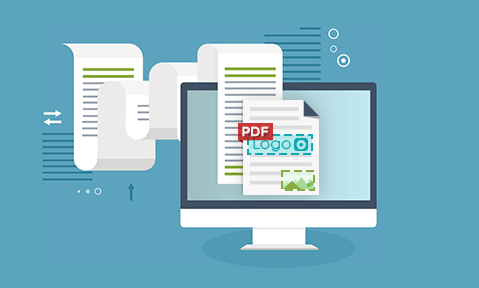
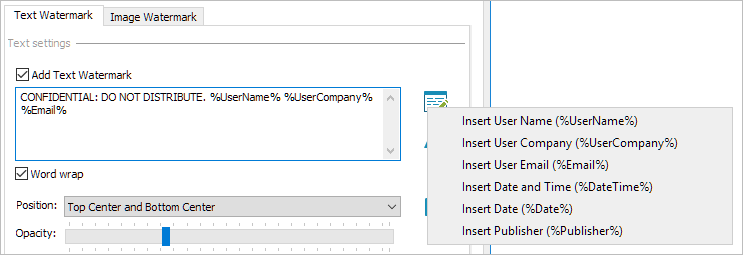
System and user information (name, email address, date/time, etc.) can be dynamically displayed on any protected PDF when printed and/or viewed without you having to protect each file individually for each user.
Dynamic PDF watermarks provide additional PDF protection against photocopies being taken of printed copies, or users taking photos of the screen with their mobile devices because they identify the user.
Unlike Adobe watermarks, or those applied using MS Office or PDF editing software, Safeguard PDF watermarks are permanent and cannot be easily removed.
PDF Security for Intellectual Property Protection
Safeguard PDF Security provides total PDF DRM protection for your documents through a multi-layered protection mechanism that does not rely on PDF password protection. A secure PDF viewer (installed or browser-based) provides smart enforcement of PDF encryption and PDF DRM controls and ensures you and your users are not exposed to PDF document security flaws.
- 10 things you wished you had known about PDF DRM Security
- Benefits of implementing PDF DRM Security
- Stopping document sharing, copy & paste
If you need complete PDF protection for your confidential or sensitive documents, want total control over how they are used, wish to scale up from password protecting PDFs where security can be easily removed, then the Safeguard PDF Document Security software is for you.
Features
PDF Security Features Overview
Safeguard PDF Security creates secure PDF files that:
 | have stronger protection than passwords |
 | cannot be copied or shared with unauthorized users |
 | are locked to devices or USB sticks |
 | cannot be screen grabbed using third party screen capture tools |
 | have non-removable and dynamic watermarks (display user & system info) |
 | are print controlled – disable printing, limit prints, or allow unrestricted printing |
 | expire after a number of views, days, prints, or at a fixed date |
 | can be revoked at any time |
 | can be viewed both online and offline |
 | can be customized with your own unauthorized use message |
For a complete overview see Features Summary.
 Protect PDFs from unauthorized use and misuse – DRM Security made easy
 Protect PDFs from unauthorized use and misuse – DRM Security made easy
- Protect PDFs without PDF passwords or certificates
- Protect PDF files on your local computer – no uploading of unprotected files to cloud servers outside of your control
- Distribute your protected PDF file just like any other file
- Manage user accounts and document records online with our web based administration system (hosted on our servers or yours)
- Transparent and secure key management that’s totally automated
- US Gov strength, NIST approved, AES encryption
- Automatic license delivery with tracking so you can see when they were sent, delivered, and opened
- Manage subscription customers with publication access
- Create secure PDF forms – stop forms from being edited or form data modified after submission
- See a summary of document and system use with Statistics, Pie Charts, and Logs
- Get up and running in less than 5 minutes
In Depth
PDF Security Features In-Depth
 | Complete PDF protection and control of document usage |  |
PDF protection that enables you to prevent, allow or control the following functions:
- Viewing, copying, modifying and saving documents and contents
- Printing documents. You can stop a PDF from being printed (prevent printing) or specify the number of times your documents can be printed
- How many times your protected PDF documents can be viewed
- How long your protected PDF documents can be viewed – days, months, years, forever, or a specific end date
- How long users can view a protected PDF document offline: always, n number of days, or they must connect every time to the administration server before they can view your protected documents.
- Expire and revoke distributed protected PDF documents at any time, automatically revoke access once view and/or print limits have been reached, manage offline access, and enforce content management system security policies no matter where your documents are
- Suspending documents if you want to enforce document start times or don’t want them viewable for a period of time
- Change expiry dates, and print and view allowances even after distribution
- Use of Windows print screen and screen grabber applications – stop users taking screen shots of your protected PDF documents
- Sharing protected PDF documents is prevented since users must have first registered with you and have the correct license and decryption keys in order to view a protected PDF file. Decryption keys are stored encrypted and locked to individual computers, thus ensuring they cannot be shared
- Use of your documents in thin client environments (e.g. Citrix). This enables you to prevent users installing one common copy for all available environment users
- Enforce your own house style and appearance by ensuring that protected PDF documents may only be seen in the format you have decided
 | PDF protection that is simple to use | |
Safeguard’s PDF protection provides complete PDF protection for even the most novice of users. Protecting PDF documents couldn’t be simpler.
To protect PDF documents, right click on them in Windows Explorer and select the secure PDF document access rights (use of printing – including how many times, etc.), press the OK button and your PDF files are instantly protected (PDF files are encrypted and document usage rights applied). PDF documents can be published on their own or assigned to publications for simple administration.
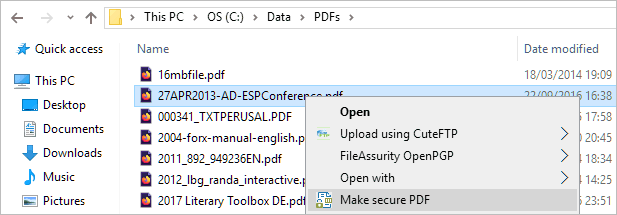
Multiple PDF files can be selected in Windows Explorer and you can choose the same PDF protection usage and access rights in one click. Or you can automatically batch protect PDFs without user intervention using our pdf command line encryption tool.
Distribute your protected PDF documents just like any other file – upload them to your website or send them out on CD-ROM, DVD, etc., knowing that they will always be secure. Dynamic document control maintains access rights and permissions assigned to a secure PDF once it has been published and distributed.
 | Batch PDF protect – no user input required | |
Batch PDF file protection enables you to effortlessly batch protect PDFs without user intervention. See optional PDF command line encryption.
Safeguard’s PDF protection Command Line Utility allows the automation of actions that would otherwise have had to be carried out manually whilst protecting PDFs through the Writer GUI. Commands can be run from the DOS prompt or a batch file without the need for manual input or user intervention. All the PDF protection options available through the Safeguard Writer GUI can be accessed through the command-line utility.
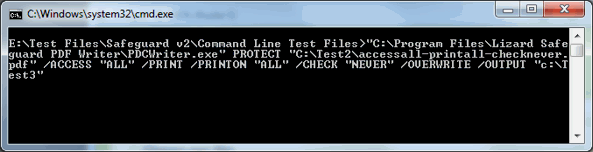
This PDF protection feature can also be used by organizations internally to rapidly protect documents for secure distribution and to control what DRM protection features are made available to sub-administrators.
 | Unique concept of publications makes document management simpler | |
The use of publications ensures minimum administration overheads and enables you to effortlessly manage your user base. The concept of the publication is a way of associating documents that are logically related. Different enterprises may see this in different ways:
- a publisher could see it as the issues in a subscription (say to a magazine or a series of reports)
- a training course provider could see it as the content of a course
- a lawyer could see it as the items making up a bundle
- a businessman could see it as the collection of documents making a bid
- a corporate entity could see it as a collection of documents for a particular business unit or department (e.g. sales documents), or for issuing to particular groups of third-party contractors.
So being able to bring together collections of documents to create a publication, makes the administration of connected documents easier for the publisher, and makes those documents automatically available to authorized users.
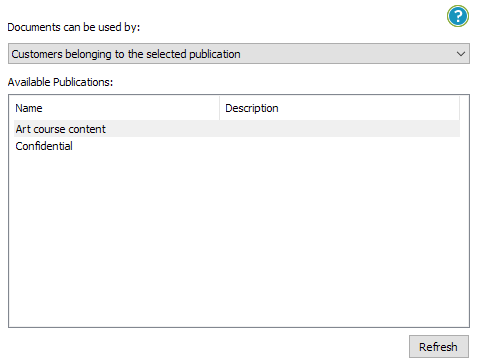
If you choose to publish your PDF documents as separate items, then each one will have it’s own encryption key. However, where users are purchasing subscriptions to publications they expect to register their subscription once and then be able to read each issue as it arrives. Also, you as the publisher may find it easier to associate documents with publications.
To meet this operational flexibility, if PDF documents are protected as something in a publication, the encryption key of the publication is used to protect it rather than generating a new random key. This means that the user is able to immediately use a new issue regardless of how you ship it to them (eMail, flash card, CD-ROM for instance), and without you having to grant individual access to that document on the administration system. Of course if you send them a protected PDF document that is not part of a publication that they have been granted access to then they will have to connect to the administration server to retrieve the new key. And if you set the rules so that they must connect before using your protected PDF documents then that will be enforced.

Safeguard enables you to manage your subscription base effortlessly by providing individual publication expiry on a per user basis – you can expire a user’s access to different publications at different times, and manage this all from a single user account.
 | Dynamic, non-removable watermarks | |
For additional PDF protection against photos or photocopies being taken, you can add custom text, dynamic data, and image watermarking to a document. This is displayed when a protected PDF document is printed and/or viewed in the Secure PDF Viewer software.
Unlike watermarks that are added using PDF editing software (that can be removed in a single action), Safeguard watermarks are permanent and cannot be easily removed.
The following items can be displayed – images, custom text, and dynamic data (date/time, user name, company name, email address).
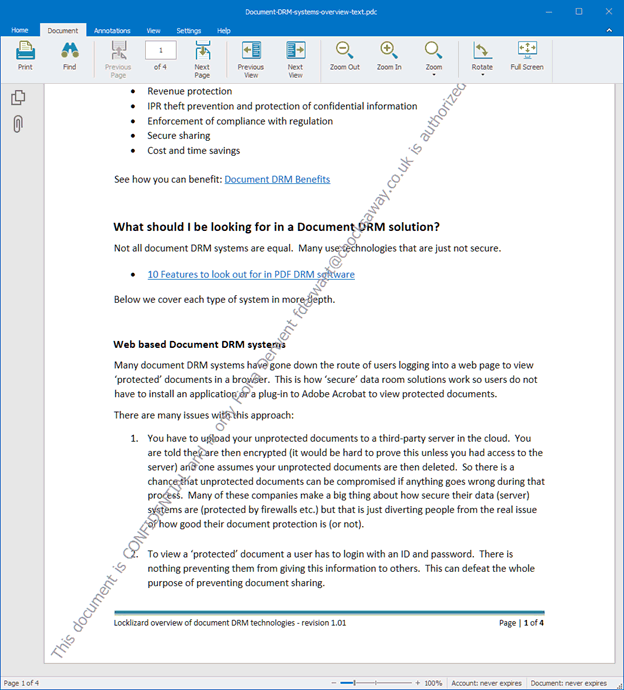
System and user data is dynamically applied when the protected PDF is displayed and/or printed, ensuring you only ever have to protect a PDF once in order to customize it for multiple users.
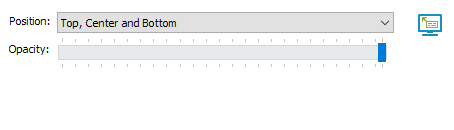
You can prevent watermarks from displaying on the first page of your documents (for unmarked cover page/ branding) and behind or in front of your PDF content.
User information can be displayed to deter photocopying, and the use of moiré images (available for free download) can be used to ensure photocopying produces extremely poor-quality copies.
 | User and document expiry, including instant revocation for previously distributed documents and persistent version control | |
User expiry
Safeguard’s PDF protection gives you total control over when user accounts and PDF access expire. You may want to, for example, give users access to documents during a specific time period, and let them be able to view those documents in the future, but not access any new ones you publish.
You can set user accounts to expire to enable time-limited trials and control subscription services.
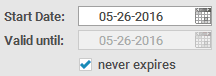
Publication expiry
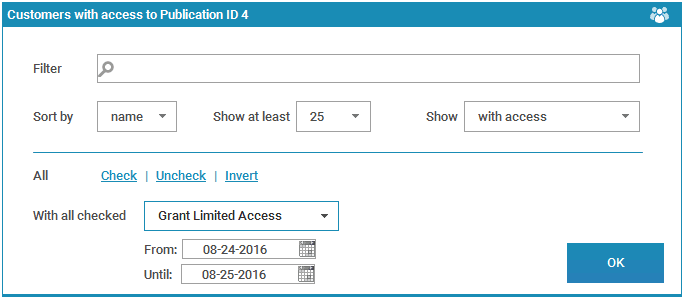
Safeguard’s PDF protection enables you to control the expiry of your publications on an individual, user, and publication basis. Users, for example, may have subscribed to one of your publications for a year, and all documents in that publication are accessible to them for a year. After a year, they will still be able to view their existing documents, but not any new ones that are published after their subscription period has ended, unless, of course, they subscribe for an additional period. Users can be given access to multiple publications, each with its own expiry period.
Document expiry
Expire documents on a certain date, after a number of days, after a number of views, or after a number of prints.
Safeguard’s PDF protection also enables you to control document expiry (PDF expiration). Regardless of a user’s subscription to your publications, you may have certain documents that are time-sensitive and must not be usable after a certain date. It also means that you can sell documents which are accessible for a limited time period at a lower cost, rather than being available forever. This enables you to reach new markets that are price sensitive. You can be sure that those users can only view a protected PDF for a day or a week, or whatever you choose. This PDF protection feature also ensures that only the authorized or current versions of documents are used after publication because obsolete versions can no longer be accessed.


Protected PDFs can also be set to automatically expire once a specified number of views and/or prints have been reached. You can specify both an expiry date and a number of views (e.g. 10 views and expiry 5 days from first use) and whatever expiry option is reached first will cause the document to expire.
Instant revocation
Instant user and document revocation – terminate access to protected PDFs instantly.
With Safeguard’s PDF protection you can force users to connect to the administration server (happens transparently) before they can view your protected PDFs. This can be every time they want to view your protected PDFs or after a certain number of days. If you choose a number of days, then after the length of time you set has passed users must go back online to gain further access.

Using this PDF protection option, you can instantly revoke user access to previously distributed documents as the access approval required to view your protected PDFs is instantly expired.
 | Complete offline PDF protection | |
Your controls are locked into each protected PDF so there is no need for users to connect to the Internet in order to view your protected PDF files (assuming of course that they have the correct decryption key stored on their computer).

Whether you want users to connect to the Internet or not to use your protected PDFs is a decision you make when protecting your PDFs.
 | PDF print control – PDF print protection to stop or limit printing | |
Safeguard’s PDF protection gives you complete control over printing of your protected PDFs. Stop printing of your protected PDFs on Windows, Mac or all operating systems.
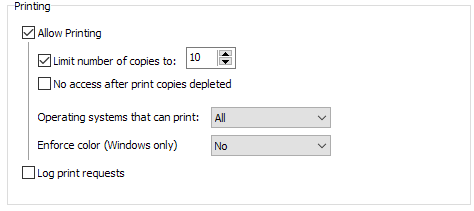
If you decide to allow printing you can control how many times your protected PDFs can be printed. Document access can be automatically revoked once this number has been reached.
You can enable document printing on a document or individual user basis and change print controls even after publication. Documents can be protected without printing enabled and prints granted on an individual user basis.
Safeguard’s Secure PDF Viewer automatically prevents printing to file, email, PDF format (Adobe Acrobat distiller, etc.), common image printers, etc.
 | Company Branding – customizable message text and image options | |
Email Customization
When you set up user accounts on the administration server, users are automatically sent an email to the address you entered with a download link to the Secure PDF Viewer software and their license file. This email is automatically customized with your company name and email address in it so that users know who to contact if they have any problems accessing your PDFs.
You can further customize this email with your own text and logo by purchasing your own Custom Viewer Registration Email.
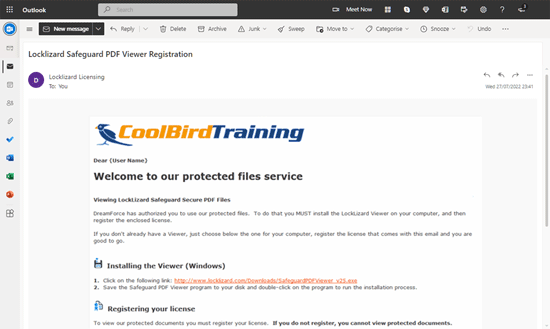
You can also use your own SMTP server so that emails are sent from your own domain name rather than the domain name of the licensing server.

Unauthorized Use Message
You can specify the text that will be displayed if a user does not have the correct decryption key present to view your protected PDFs – e.g. where they can purchase a license from or who to contact.

Splash screen Image
Each time a protected PDF document is loaded, a splash screen can be displayed. You can insert your own image here (say your company logo and maybe a brief message) to customize Safeguard’s PDF protection to represent your company image.

Display Presentation
With Safeguard PDF Security, you can require protected PDFs to open in particular formats, and can prevent users from being able to change to another style of presentation. This allows you to enforce your own house style and appearance.
Viewer Logo
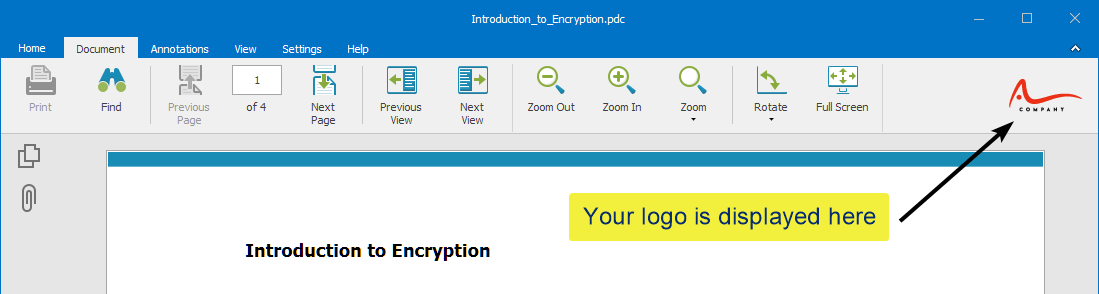
You can brand the Windows Viewer and Web Viewer with your company logo – see Publisher Own Branding.
 | Web based administration | |
Safeguard PDF Security comes with its own simple to use web-based administration system, enabling you to control and revoke access to your secure PDFs in real-time even after distribution.
Once you have protected PDF files, it is a simple matter of setting up users on the administration system (user name, company, email address) and allowing them to use one or more of your publications or documents. Each protected PDF document that belongs to a particular publication will then be accessible to all users that have subscribed to that publication.

The administration system can handle a large number of users, documents, and publications, and you can perform actions on multiple users, documents, and publications in one go.

Safeguard provides various search and sort filters to help you find the customers and documents you are looking for more easily. You can search by ID, name and/or email, display records in date or alphabetical order, and specify the number of records displayed on each page. You can show only specific classes of user accounts (e.g. only users that have registered, or whose accounts have expired), or documents that have been published to a specific publication and/or have limited prints/views allocated to them. You can select two filters to be applied at once.

Safeguard records all the document protection options for each individual document on the administration system, and you can customize record displays, add and edit descriptions.
For extra security, a manual logon/logoff process is used.
 | Data import / export | |
You can import user data into the Safeguard Administration system, and export user, document, and publication information to separate CSV files.
CSV importing means you can interface systems that do not obey consistent standards.
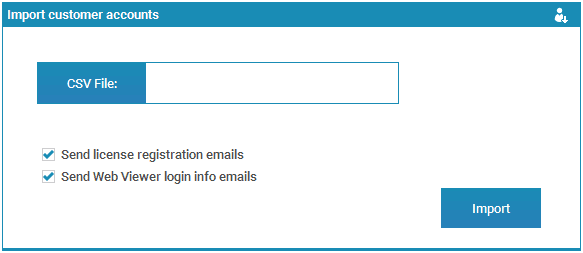
Exporting information in a CSV format makes it readily accessible for spreadsheet manipulation and analysis.

 | User and system auditing | |
User Logs
The administration system records the date, time and IP address of users when they first connect to the server to obtain their decryption keys and when they login to use the Web Viewer. It also records whether a user has tried to register with you more than once (i.e. on another computer), when this occurred, and the IP address and Operating System they were using.

Administrator Logs
The administration system logs when administrators log on, when they performed an action (i.e. adding, deleting, or modifying a record), and when this occurred.
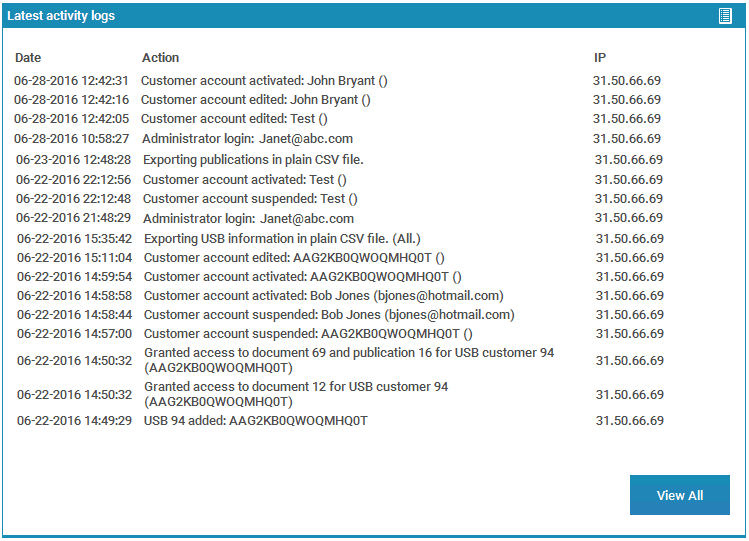
Ecommerce Logs
If you are using Safeguard Ecommerce Integration you can see what ecommerce commands were successfully actioned, the action/parameters used, when and where this took place, and export this information to a CSV file.

Undelivered Email Logs
A list of undelivered emails (e.g. emails that bounced, marked as spam, auto responded etc.) are recorded and you can export this information to a CSV file.

 | Reports & Statistics | |
In the statistics section, the dashboard provides you with a summary of users, documents, and publications, and system-level actions.

This includes:
- Total number of users, unregistered users, registered users, suspended users, last registered user, expired users, deleted users, last added, last deleted, last import, last export
- Total number of documents, suspended documents, expired documents, last published, last export of document information
- Total number of publications, last added, last export
- Last logon, last action of an administrator
Selecting an entry shows more detailed information. For example, clicking on ‘suspended documents’ will display all of the documents that are suspended.
Pie Charts
Pie charts provide a quick visual summary of the principal system details.

 | Email delivery and tracking | |
User licenses can be sent automatically by email (either an embedded link, or a link and attachments) or you can choose to display them on a web page (in conjunction with the ecommerce module) for instant license delivery. You can also choose whether individual users are sent license files, and can resend registration emails if they have been blocked by SPAM filters or deleted by mistake by the user.

You can track the email delivery status from each user’s account. This records when an email was sent, delivered, opened, or bounced. A list of undelivered emails is recorded on a system-wide basis so you can easily identify any problems with users receiving their license emails.

You can save a user’s license file to the disk and as an email (the complete email text sent by the Administration System). This is handy if a user wants their license file email sent to a different or additional email address to that stored in their customer record since the license file email can be quickly forwarded on.

You can resend license emaisl to a single customer or multiple customers in one go. Enterprise PDF DRM also enables you to batch resend license files to all users who have not registered their licenses, in a single operation.
Every license file emailed from the administration system can also be sent to a monitor email address of your choice so that a record is available of who has been sent their license files, which you may also use to resend licenses. You can use Locklizard’s email system or have emails delivered from your own domain by entering your own SMTP information.
 | E-commerce integration for a 24×7 service | |
Ecommerce integration enables you to automate your entire sales process so there is no manual intervention. See optional ecommerce integration.
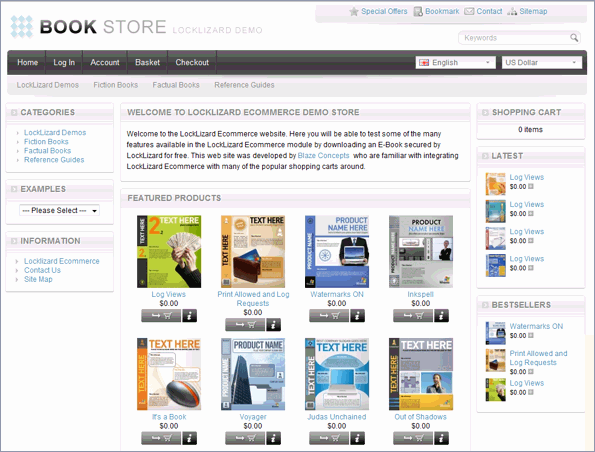
You can integrate Safeguard’s PDF protection with your existing e-commerce system to help provide a totally automated secure document distribution service. Once users pay or are authorized to use a document or publication, their details are automatically set up on the administration server and assigned the appropriate publication / document access rights. License file information is sent out automatically by email so users can view your protected PDF documents straight away.
 | Choice of hosting arrangements | |
You can either use our managed service (hosted on our own servers so no set up configuration required), or you can host the administration system on your own server (we can set up the system for you or you can choose to do this yourself).
Hosting on our servers requires a yearly maintenance fee but ensures you are up and running from day one as no server configuration is required at your end – saving you time, hassle and money.
Regardless of who hosts the administration system, you always protect PDF files locally on your own computer and distribute them just like any other file (from your web site, by email, CD-ROM, etc.).
 | Limitless PDF protection – no limit to the number of protected PDF documents or the number of users | |
Unlike other products, our PDF DRM protection software lets you protect as many PDFs as you want and manage as many users as you want for no additional cost.
There is no limit to the number of PDFs you can protect or the number of users you have viewing those protected PDFs.
 | Free secure PDF viewer software | |
Users can download the Secure PDF Viewer software totally free of charge, either from our website or from yours, or you can distribute it freely via email.

The FREE Secure PDF Viewer can be:
- installed on a computer
- run directly from any USB stick (no installation or registration required, offline access) – Secure USB Viewer
- accessed via a web browser (no installation or registration required, online access) – Secure Web Viewer
Our installed stand-alone Secure PDF Viewer has a small footprint (so users don’t have to spend hours downloading and installing Adobe Acrobat), is fast to load, and ensures all the DRM controls are applied without exposing you, as the publisher, to known Adobe PDF document security issues, plug-ins (see Adobe PDF plug-in vulnerabilities) or insecure JavaScript (which also puts users computers at risk from being hacked). It is not invasive and does not use root kit technology.
Protected PDFs are decrypted on-the-fly in memory. They are never saved to disk in temporary format or to the Windows swap file. We do not create extra files on disk that can be copied to another computer along with the protected PDF files and therefore be easily shared and viewed.
Viewer updates can be enforced to ensure that users are always using the latest version.
 | Transparent real-time web based user authorization | |
Safeguard’s PDF protection ensures users don’t have to worry about entering passwords (we don’t use them) or managing decryption keys.
When a user views one of your secure PDFs for the first time, the Secure PDF Viewer software will check if it has the correct key to view it. If it does not, the Secure PDF Viewer will check with the administration server to see if the user has been granted access to the protected PDF. If access is allowed then the decryption key will be transparently relayed to the client. If not, your custom message will be displayed telling the user how to contact you for access.
 | Government strength PDF protection for your documents | |
To ensure complete PDF protection, your PDFs are encrypted using industry-standard encryption – the US Government approved algorithm, AES.
PDF encryption allows us to enforce the digital rights management controls applied to your protected documents.
Since no decryption keys are included with the documents, an attacker faces the (currently) impossible task of breaking the encryption algorithm itself.
 | No passwords to send, enter, manage, forget or pass on to others | |
Safeguard’s PDF protection does NOT use passwords since PDF password protection is ineffective and can be easily removed.
- Strong public key technology is used rather than weak password mechanisms that are easily crackable. Not using password protection ensures bullet-proof protection of your PDF documents – since there is nothing to enter the system is not vulnerable to password attacks.
- You don’t have to distribute passwords to users and they don’t need to type in access codes to get going. Decryption keys are transparently relayed to the client computer and stored in encrypted format. There are no passwords to enter, manage, compromise, forget or pass on to others.
- Whilst we use public key technology, no key management is required by you as the publisher or by users, as it is all handled transparently by the licensing system. There are no certificates to revoke when you want to terminate a users access or any other PKI complexity.
- Locklizard provides a secure exchange mechanism in order to move the required key down to the user’s desktop at the same time as validating the user’s authorization to receive the key. Keys are seamlessly delivered to user’s computers.
- Whilst user keys are stored on the user’s computer, they are also locked to that computer and cannot be moved. So the user must be at that computer in order to be able to use the licensed documents. Any attempt to move the keys system to another computer will invalidate it.
 | Total PDF protection – no PDF security risks | |
Secure PDF Technology
- Safeguard creates secure PDFs by encrypting them and applying DRM controls.
- Secure PDF files created with Safeguard PDF Security cannot be broken using password cracking mechanisms since users do not enter a password to open secure PDFs. Decryption keys required to view secure PDF files are secretly transferred to a keystore that is encrypted and locked to the client computer or a USB device. If a user copies the secure PDF files and the keystore to another computer the files will fail to open.
- Safeguard PDF Security does not use plug-ins to Adobe Acrobat or JavaScript because they are major security weaknesses.
Safeguard’s PDF protection uses its own decryption application (a Secure PDF Viewer) rather than relying on a plug-in to present your information. This ensures the security of your information is always under the tightest of controls, and is not vulnerable, or exposed to any errors in third party applications. Protected PDFs are decrypted in the Secure PDF Viewer, which applies the necessary PDF DRM controls and ensures your PDF content cannot be compromised by other applications, JavaScript, plug-in failures or conflicts, or the common Adobe PDF document security flaws and cracks.
Read this article on Adobe Acrobat Security published by Bryan Guignard, an Adobe Certified expert, on why we don’t use Adobe’s implementation / Adobe plug-in for PDF protection.
To ensure total PDF protection for your source files, you protect PDFs on your own computer. The source PDF files (unprotected files) are never exposed to a web server where they could be easily compromized.
How it works
Safeguard PDF Security consists of 3 components:
 | Secure PDF Writer |
| Installed on the computer(s) where you want to create secure PDF files (right-click on PDF files to secure them). Secure PDFs can be created manually or in batch mode using command line encryption. | |
 | Web Admin System |
| A web based (cloud server) administration system where you create user accounts, change expiry dates, and revoke secure PDFs. License files (used to authorize users) can be issued manually or automatically using our ecommerce interface. | |
 | Secure PDF Viewer |
| A Secure PDF Viewer that is used to view secure PDF files. This can be installed on either a device (Windows, Mac, iOS, Android), run directly from a USB device (no installation required), or accessed via a Web browser (no installation required). | |
How to Protect PDF Documents & how users View them
 How to Protect PDF Documents & how users View them
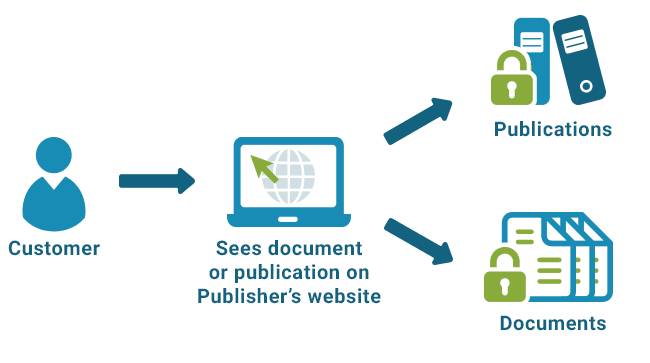
Step 1: Publisher secures a PDF document

Step 2: Publisher adds secure PDF document to his web site
Step 3: Customer browses through a list of secure PDF documents on Publisher's web site
Step 4: Customer purchases secure PDF document and receives access key
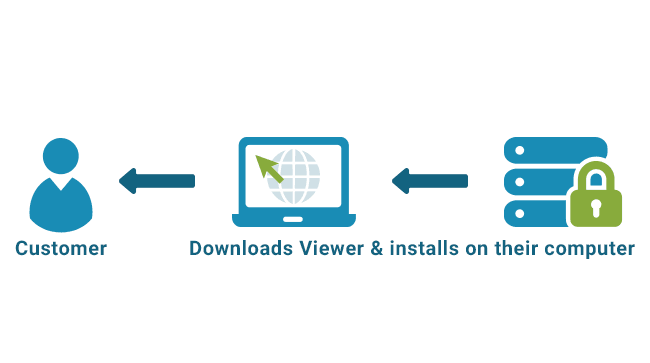
Step 5: Customer downloads Secure PDF Viewer software and installs it
Step 6: Customer can view all secure PDF documents they have purchased

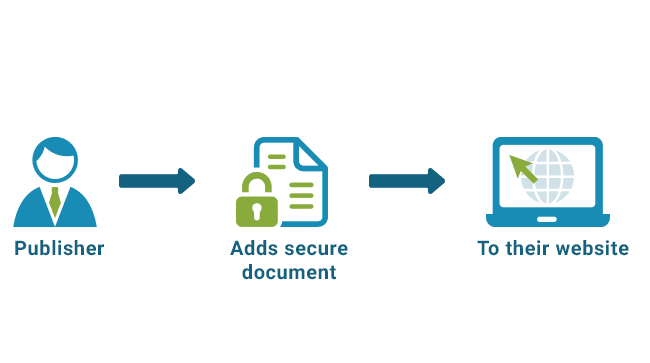


Publishing PDF Files Securely
 Publishing PDF Files Securely
- Protect PDFs using Safeguard PDF Security or Enterprise PDF DRM Security.
- Choose what DRM controls you want to apply and how the documents are protected – for all authorized users, as part of a publication (all users authorized to view that publication have access), or documents must be individually assigned to users.
- Protected PDFs can then be distributed just like any other file (email, uploaded to a web site, etc.).
- You can also use Web Publisher to upload the protected PDF files to a cloud server where they are instantly available to authorized users via a browser using Safeguard Web Viewer.
- On the Safeguard Administration system you create users and assign them access to protected documents and publications. If you are using ecommerce integration, then this happens automatically when a user purchases your documents.
- The Admin system automatically sends users a welcome email with their registration file and download links to the Secure PDF Viewer software. If you are using Web Publisher then users will be sent an email with their login details to the Web Viewer protected document portal.
- Users install the Secure PDF Viewer and click on a link to register with your system.
- Users click on a protected PDF document (PDC file) to open it. The protected document is opened in the secure PDF Viewer which enforces the DRM controls you have applied such as stopping printing, applying watermarks, enforcing expiry.
- Protected PDF files are locked to specific devices that you have authorized, so if forwarded, cannot be opened on other computers.
For detailed information on creating secure PDF files and Viewing them, see the Product Walkthrough.
Benefits
 | ROI | |
As a Publisher
- Reduce the cost of distributing confidential information – this can now be done electronically since you are always in control of who can view your documents and what they can do with them.
- Now you have the convenience and cost savings of online business processes with more secure and reliable electronic document exchange.
- Achieve full control of the use of the PDFs you sell for under $4 a day (based on a 3-year time period).
- Make just a few extra sales to recover your whole expenditure.
- Manage your customer base and prevent copying and selling on.
- Reach new markets. Sell PDF documents that are accessible for a limited time period at a lower cost, rather than being available forever, enabling you to reach new markets that are price sensitive.
- Ensure that your house style and image/branding are preserved even in the electronic environment.
- Gain additional revenues (customers now have to buy whereas previously they may have obtained your content for free).
- See which of your documents/ebooks are most used by how often they are viewed/printed, not just how many are sold. Modify your marketing processes accordingly to promote your most popular items. Note: Document logging is only available in Safeguard Enterprise PDF DRM.
For more information see Safeguard PDF DRM for small publishers and Safeguard PDF DRM for large publishers.
Internal company use
- Ensure that sensitive documents (merger and acquisition for instance) are really destroyed if a deal does not go through.
- Prevent your IP going with an employee when he/she leaves your company. Stop information leakage & theft.
- Ensure that outsourced work (i.e. design work) and strategic proposals do not fall into the hands of your competitors.
- Ensure internal company sensitive information (e.g. salaries, budgets, strategic plans) stays within the business.
- Ensure that only the authorized or current versions of PDFs are used.
- Enforce your document retention policies by requiring documents to become automatically inaccessible without further action once they are no longer required.
- Ensure inbound information (i.e. sensitive research, financial or legal information) is continuously protected (accessed and used appropriately by the correct people) for the duration of its lifecycle.
- See which users are viewing and printing your documents, and how many times this occurs. For example, you can find out who in a distribution list has actually read the document, or spot if excessive printing is taking place. Or you can find out which documents are most commonly viewed and/or printed. Note: Document tracking is only available in Safeguard Enterprise PDF DRM.
For more information see Safeguard PDF DRM for internal company use.
| Ensure greater compliance with privacy regulations for electronically distributed information | |
Compliance is the achievement of minimum requirements as dictated by regulatory bodies and law. New regulations and best practices (Sarbanes-Oxley Act, Gramm Leach Bliley Act, HIPAA, ISO 17799) raise these standards by increasing the demand for availability, yet enforcing the need for adequate security against information misuse or wrongful disclosure. Sarbanes Oxley even builds on existing regulations to require the proof of effective internal controls for company assets, including the protection of information assets such as a company’s trade secrets.
Safeguard PDF DRM ensures ongoing policy, legal and regulatory compliance. It removes the risk of you incorrectly transmitting sensitive data by continuing to protect and enforce policy controls even after distribution.
See how Locklizard document DRM security products can help with regulatory compliance and document retention.
| Complete control over your IPR | |
- Achieve full control over how your licensed PDFs are used.
- Ensure your PDFs are not printed, copied, shared, or modified without your permission.
- Revoke documents when you decide they should no longer be available.
- Copyright is always maintained, as are trade secrets.
 | Increase your revenue streams | |
Sell PDFs securely – stop sharing, piracy & theft:
- Users now have to pay for content where previously they may have obtained it for free or shared it with others.
- You can now enter markets that were previously blacklisted due to previous fears of your content being copied or unlawfully distributed.
- Increase revenue through new lines of business – maximizing the ability to distribute documents electronically without worrying about their security.
| License expiry lets you give users evaluation / limited time trials of your documents and/or ensures subscribers will continue to pay for your products at renewal time | |
Users can ‘try before they buy’ without you having to give away unrestricted use of your PDFs. Just specify a number of days or views for evaluation.
In the same way, when a subscription license expires it does so automatically and your subscriber will have to renew it before they can continue using your PDFs. You therefore retain full control over your PDFs at every stage, and ensure customers continue to pay license fees when they are due.
Another way of using license expiry is to allow restricted time access (a few days, a month, etc.) to your PDFs for a cheaper price, or as a limited alternative to selling a paper copy.
| Simple administration when selling document information services | |
Controls are automatically applied to the individual desktop and cannot be bypassed by the users of the system.
You can implement the administration system on your own servers (we can implement this service for you at extra cost) or you can use our managed service – choose which best suits your business model.
| Take control over sensitive information while increasing the flexibility of using electronic documents | |
Share documents securely and prevent document leakage.
Protect valuable and confidential PDF documents from unauthorized viewing.
US Government strength encryption, digital rights management and state-of-the-art licensing controls ensure your information is never at risk.
Your documents are never uploaded to our servers at any time (except if using Web Publisher), they always remain completely under your control.
| Ease of deployment | |
There’s no need to wait days like our competitor offerings to be up and running. You can start issuing licenses in a matter of minutes from purchasing.
Our fully hosted systems ensure there are no extra costs involved in time or money (server configuration, consultant fees, etc.). And when you want to bring the system in-house you can switch over to your own server hosting and integrate it with your e-commerce system for a totally automated solution.
Locklizard’s document DRM systems take you beyond domain level security such as that used by Microsoft RMS enabling companies to securely exchange documents in different environments without demanding that you or your customers implement a specific infrastructure.
Our ecommerce integration module and command line utility ensure a totally automated protection and license delivery system without the need for manual input. Batch protection of your PDF documents can be simply and quickly incorporated into your existing web based applications without the need to use an API.
 | Simple method for controlling access to and use of commercial and confidential documents | |
Protect patent documents, IPR or commercially valuable documents in just a couple of mouse clicks.
Without the proper protection of electronically maintained information, organizations face serious risks to their financial performance, intellectual property, trade secrets, research, customer privacy and more.
| Insight into user, system, and document activity | |
Get a complete overview of user, system, and document activity – see the whole picture or examine sections and individual items.
- See how often your documents are viewed and printed. *
- See your 5 most accessed, viewed, and printed documents. *
- See at a glance how many users, documents, and publications you have and what status they are (active, suspended, expired, etc.).
- View when administrator actions took place – last added, edited, or deleted records, logged in, logged off, backed up/restored* the administration system.
- Log sub-administrator actions and events. *
- Run reports on user, document, and publication activity at any stage, export and save them. *
* Safeguard Enterprise PDF DRM only.
 | Zero installation Viewers for web browsers & USB devices | |
Our zero installation Viewers ensure IT departments and users don’t have to custom install, assign administrator privileges, worry about firewalls, or carry out formal evaluation – saving time and money.
Web Viewer
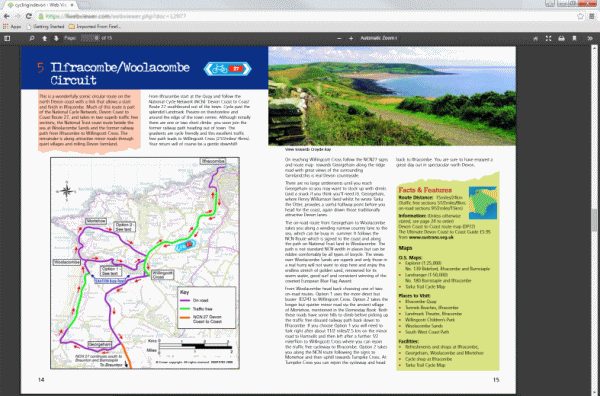
A browser based Viewer, Safeguard Web Viewer, enables protected PDF files processed by Web Publisher to be viewed in a browser from any device using any Operating System. It is ideal for environments where no Viewer software can be installed.
USB Viewer
A Viewer that runs from a USB stick, Safeguard PDF Portable, can be used without an Internet connection ever being available. It provides ultimate flexibility for using protected documents wherever the user goes. Secure documents are instantly accessible just like ordinary files.
Screenshots
Protecting PDF Documents
- Protecting PDF documents: Highlight your PDF files in Windows File Explorer, right-click and select 'Make secure PDF'.
- Customization: Here you can brand the viewer with your own splash screen and custom message.
- Document Access: Here you select what customers/users can view your protected PDF documents.
- Expiry and Validity: Here you select when your protected PDF documents expire (if ever) and whether checks have to be made with the server to validate licenses. By enforcing license validation you can instantly revoke access to protected PDF documents.
- Environment Controls: Here you select various controls that determine what environment the Secure PDF Viewer will run. Secure PDFs are automatically protected from copy and paste.
- Printing and Viewing: Here you select whether users can print and view your protected PDF documents, and if so, how many times. You can even prevent document access once the number of prints have been used.
- Watermarks when viewing: Here you select whether watermarks are displayed on your protected PDF documents when they are viewed. System variables - user name, company name, email address, date/time stamp - can be dynamically displayed. Both text and image watermarks are supported.
- Watermarks when printing: Here you select whether watermarks are printed on your protected PDF documents. Both text and image watermarks can be printed. System variables - user name, company name, email address, date/time stamp - can be dynamically applied when printing occurs.
- Display Settings: Here you select how you want your protected PDF document to be displayed in the Secure PDF Viewer and whether you want to enforce those settings.


PDF Protection Administration System
- Customers: This is where you create, edit and manage user accounts and assign document and publication access.
- Publications: This is where you add and manage publications. You can also view the customers and documents associated with each publication and assign publication access.
- Documents: This is where you manage protected PDF document records and see the controls you applied to them. You can also view the customers who have access to each protected PDF document and grant or deny access.
- Statistics: This is where you can see statistics and view system log files.
- Settings: This is where you can review and change email settings and control how license information is delivered to users.
- My Account: From here you can download your Writer license and see what product add-ons are enabled.


Technical info
 | Operating Systems supported
For Viewer OS’s supported see our Secure PDF Viewer. File size supportedMaximum single file size that can be protected is 200MB. EncryptionNIST approved AES. Server requirements (for own server hosting)The Safeguard administration system can be installed on the following server operating systems:
Full root access is required and a domain name must be assigned to the server. The server must be capable of having the following software installed on it:
Minimum hardware specification: |
FAQs
How do I secure a downloadable PDF on my website?
By forgoing password protection and instead protecting it with a PDF DRM solution like Locklizard. As there is no way for users to open it on unauthorized devices, you can host the PDF file anywhere without fear.
How do I securely redact a PDF?
To securely redact a PDF you need to be able to stop users from removing the box covering the original text. You must be able to stop editing to achieve this – something Adobe Acrobat is unable to do. Instead, it’s better to make your modifications and then protect it with a PDF DRM protection tool like Safeguard which cannot have its redactions removed.
Is PDF encryption secure?
If implemented strongly and correctly, PDF encryption is a great way to protect a PDF in transit and at rest. It prevents unauthorized access to the document so long as the mechanism for providing the decryption key is secure. However, it alone does not prevent a user who does have the decryption key from misusing or sharing the document.
How secure is Adobe PDF encryption?
Not especially secure. While Adobe Acrobat offers strong algorithms in its latest versions (AES 128 and 256-bit), the document’s decryption is linked to a PDF password. Rather than having to guess the whole decryption key (which would take millions of years), an attacker just has to guess the password – which could be only a few characters. Password protection just isn’t a good method of document security.
Can you sanitize a PDF using Locklizard Safeguard?
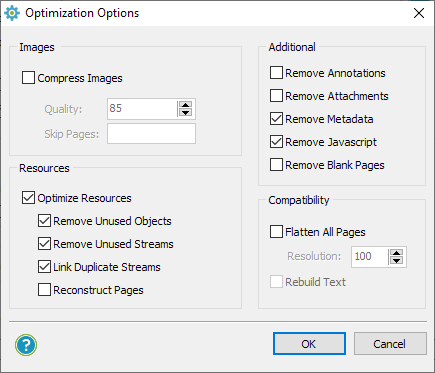
You can remove sensitive metadata and annotations when protecting the PDF. To do so, click on the Optimize PDF icon in the Customization Tab and choose the information you would like to remove. You can also select various other optimization options to speed up page loading.
What advantages does PDF DRM Protection provide over encryption?
A DRM protected PDF contains additional security functionality that enables you to control how a PDF is used after distribution. For example, you can prevent sharing, copying, editing and printing, enforce expiry and revoke access at any time. In addition, unlike Adobe permissions, restrictions cannot be easily removed.
Customer Testimonials
We needed to deliver e-book versions of our handbooks while not compromising on security and digital rights. Safeguard PDF security is easy to use and intuitive.
The implementation was painless and we now have a greener, more secure way of distributing training manuals.Locklizard’s PDF protection is exactly as described – the features are highly effective and I would give it 5 stars.
I would recommend Locklizard to others - their security is simple to use and fit for purpose. It meets common needs of businesses who have information they want to protect.We would be happy to recommend Locklizard to any company needing a flexible way to secure PDF files.
Safeguard PDF Security has provided us with a very workable solution for sharing of information in a secure fashion. The support has been excellent and very accommodating.We can cut accounts for a user five minutes before his class starts and he is ready to go. Happy smiling customer, while we still have security and personalized watermarking.
I have immense respect for the product and Locklizard provide great customer satisfaction and service.We would recommend Safeguard to other companies for its security, cost and ease of use. It does what we expected it to do and more.
Ease of use is a bonus and the implementation was very easy. The product manual is excellent and Locklizard staff are very accommodating.We sell a highly valued educational product in an open and competitive market so it was important to ensure we had effective security to protect our digital rights.
We highly recommend Locklizard - a professional company with a competitive and professional PDF Security product.We would absolutely recommend both Locklizard as a company, and Safeguard PDF Security. It has transformed our study materials to the next level.
Not only did this increase sales, but we also believe that it has increased our customers’ ability to learn, which is even more important!We would recommend Locklizard Safeguard to other companies that need to protect PDF reports. Customers have found the process of accessing the protected documents to be seamless.
Implementation was easy and technical support has been very responsive to requests for help.Our company would without reservation recommend Locklizard. Their document DRM software opens up delivery of our new products in a timely fashion while knowing that the content will remain secure.
The return on investment to our company has been immediately evident.We use Safeguard to make sure that documents cannot be opened outside our local network or from a unauthorized computer in order to copy or print the documents.
It is the most feature rich, affordable, & simple to use PDF security product on the market.Safeguard PDF Security is simple to administer and meets our needs, consistently delivering secured manuals to our customers with ease.
Return on investment has been elimination of many man hours, printing resources and postage – it is estimated that costs decreased by 50% or more.We would really recommend Safeguard PDF Security to every publishing company for managing ePubs or e-books securely. It is easy to secure PDF files and simple to distribute them to our authorized customers only.
Locklizard also provides a good customer support experience.The ROI for us is incalculable. We have the security of knowing that our proprietary documents are secure. This is the entire value of our company.
I would most certainly recommend your PDF security product and already have. The ease of implementation was surprising.We can now sell our manuals without the need to print them first, saving time, money and helping safeguard the environment.
We would recommend Safeguard PDF DRM – it is the perfect solution to sell and send e-documents securely whilst making sure someone cannot copy them.We would recommend Locklizard to other companies without hesitation.
Their PDF DRM products provide a manageable, cost effective way to protect intellectual investment and they are always looking for ways to improve them. Moreover, their staff provide an excellent level of support.